A slow website can negatively affect every aspect of your online presence—from user experience and search engine rankings to conversions, revenue, and overall business growth. Whether you manage a personal blog, an eCommerce store, or a business website, slow page loading can frustrate visitors, increase bounce rates, and discourage potential customers from taking action. Since search engines like Google favor websites that provide a fast and smooth browsing experience, improving your site’s performance is more important than ever. To help you achieve that, we’ve created this complete WordPress Speed Optimization guide, covering everything you need to make your website faster and more efficient.
If your website loads quickly, it is more likely to rank higher in search results, achieve better Core Web Vitals scores, and keep visitors engaged. However, even a few extra seconds of loading time can cause potential customers to leave your website before taking any meaningful action.
Optimizing your WordPress website isn’t just about achieving a higher Google PageSpeed Insights score. It’s about delivering a better user experience, increasing organic traffic, improving engagement, and generating more high-quality leads, sales, and revenue.
In this comprehensive guide, you’ll learn everything you need to optimize your WordPress website for maximum speed and performance—from basic techniques like image optimization and caching to advanced optimizations such as CDN integration, database optimization, PHP configuration, server tuning, and Core Web Vitals improvements. Whether you’re a beginner or an experienced WordPress user, this guide will help you identify performance bottlenecks, fix speed-related issues, and build a faster, more efficient website.
How to check your WordPress Website Speed
There are thousands of articles available on search engines about website speed optimization, each offering different tips and techniques. However, before making any changes to your website, you should first test its speed and performance. Analyzing your website in advance gives you a clear understanding of what needs to be optimized, helping you focus on the right improvements while saving time and effort.
Many website owners believe that because their website loads quickly on their own device, it will load just as fast for everyone else. However, this is a common misconception. Browsers like Chrome and Safari often store cached versions of your website and may preload pages as you type the URL. As a result, you are usually viewing a much faster version of your website than a first-time visitor would.
In reality, first-time visitors—especially those using slower internet connections, different devices, or accessing your website from other locations—may experience significantly slower loading times. That’s why it’s essential to test your website’s speed with reliable performance tools rather than relying solely on your own browsing experience.
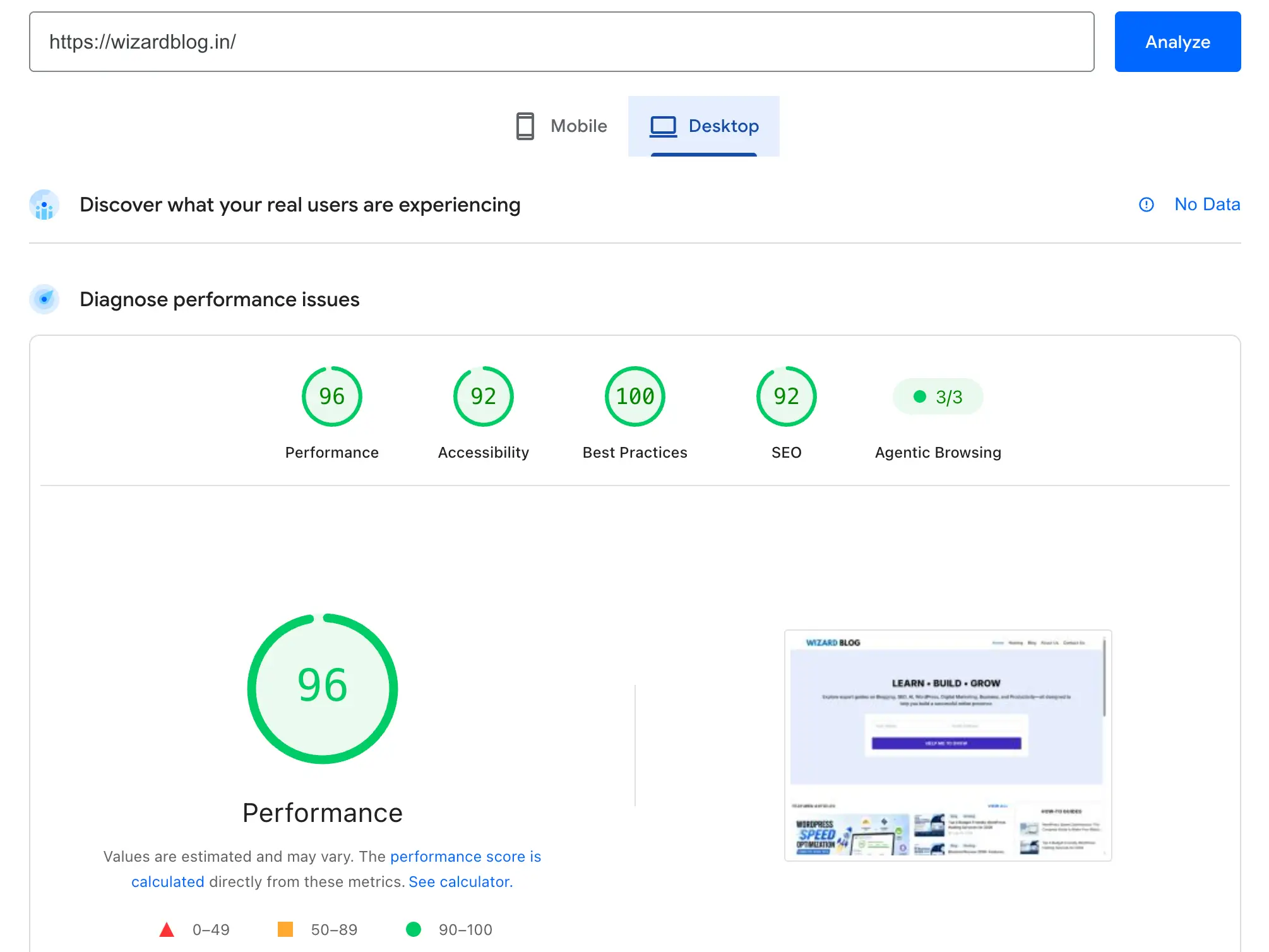
I recommend using Google PageSpeed Insights to test your website speed. It’s completely free, easy to use, and provides a detailed performance analysis. It also gives you a clear breakdown of your Core Web Vitals, along with practical recommendations to help improve your website’s speed, performance, and overall user experience.
Other best alternate options are:
Pingdom: Helps you analyze your website’s loading speed from different global locations. It provides easy-to-understand performance scores, load time, page size, and optimization suggestions.
GTmetrix: Offers a detailed performance analysis using Core Web Vitals, Lighthouse metrics, and waterfall charts. It helps you identify performance bottlenecks and provides actionable recommendations to improve website speed.
Using those tools, you can actually understand how your website performs for first-time visitors, rather than opening it at your end.
Perfect Page Speed
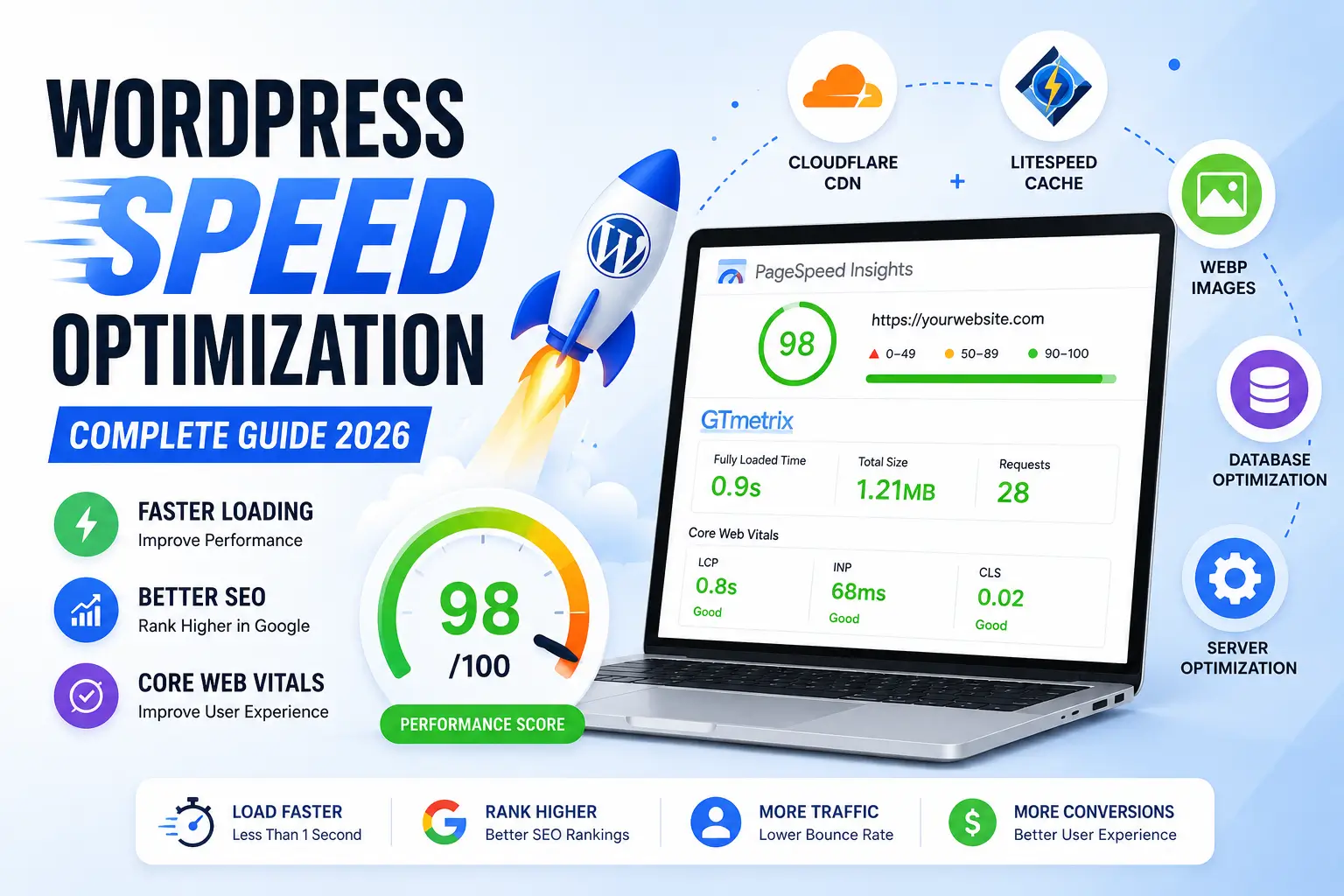
There is no single “perfect” page speed; your goal should be to provide the fastest possible experience for your visitors. A website should load in 2-3 seconds, and your Google PageSpeed Insights score should be 90 or above on both mobile and desktop. Meeting Google’s Core Web Vitals thresholds is equally important, as they directly impact user experience and search rankings. Google highly focuses on Core Web Vitals, which measure real user experience.
Recommended Benchmark:
- Page Load Time: Under 2–3 seconds
- Google PageSpeed Score: 90-100
- Largest Contentful Paint (LCP): Under 2.5 seconds
- Interaction to Next Paint (INP): Under 200 ms
- Cumulative Layout Shift (CLS): Under 0.1
Tip: Don’t focus only on achieving a perfect PageSpeed score. A fast-loading website with excellent Core Web Vitals and a smooth user experience is far more valuable than simply chasing a score of 100.
What Causes a WordPress Website to Load Slowly?
Running a website speed test often produces a report filled with technical terms, scores, and recommendations that can be difficult to understand, especially for beginners. The good news is that most slow websites suffer from the same common performance issues. By learning what these problems are and why they occur, you can make the right optimizations and improve your website’s speed more effectively.
Here are the most common reasons a WordPress website loads slowly:
- Poor Website Hosting: Your hosting provider is crucial to website performance. Slow or overloaded servers can increase loading times, no matter how much you perfect or optimize your website.
- Large & Unoptimized Images: Uploading high-resolution images without compression increases your page size, forcing browsers to download more data before your website loads.
- Too many plugins: Using too many plugins or choosing poorly optimized ones can increase your website’s load by adding extra scripts, database queries, and background processes, which can slow your website speed.
- Heavy WordPress Theme: Using a free theme, Nulled Theme, or a theme with excessive features, animations, sliders, and unnecessary code often loads more resources than needed, reducing overall performance.
- No Caching: Without page caching, WordPress generates every page dynamically for each visitor, which can increase server load and slow page delivery on your website.
- Unoptimized CSS & JavaScript: Large unused CSS and JavaScript files block page rendering and delay how quickly visitors can interact with your website.
- No Content Delivery Network (CDN): Without a CDN, your website is like Sucksss! Cause without a CDN, visitors far from your server experience slower loading times because all website files are served from a single location.
- Outdated PHP Version: Using an outdated PHP version can reduce your website’s performance, security, and compatibility. Choose a hosting provider that supports the latest PHP versions and allows easy upgrades to keep your WordPress website fast, secure, and fully compatible.
Many factors can affect your website’s speed, but the biggest ones are your hosting, WordPress theme, and the plugins you install.
Tip: Always back up your WordPress Website before making performance-related changes. A recent backup allows you to restore your site easily if an update or optimization causes unexpected issues.
The Ways to Speed Up Your Website Speed
Speeding up your website doesn’t have to be difficult. By following the right optimization techniques, you can improve loading speed, enhance user experience, boost SEO rankings, and increase conversions. The topics covered below provide a step-by-step approach to website optimization, making it easier to improve your site’s performance without confusion or unnecessary technical challenges.
Choose a Fast and Reliable Hosting Provider
Your hosting provider is the foundation of your website’s performance. If your server is slow or poorly configured, even the best optimization plugins and lightweight themes won’t deliver the speed you’re looking for. That’s why experts recommend choosing a hosting provider with a data center close to your primary audience, as it helps reduce latency and improve loading times. For visitors in other regions, using a Content Delivery Network (CDN) ensures your website loads quickly by serving content from the server closest to them.
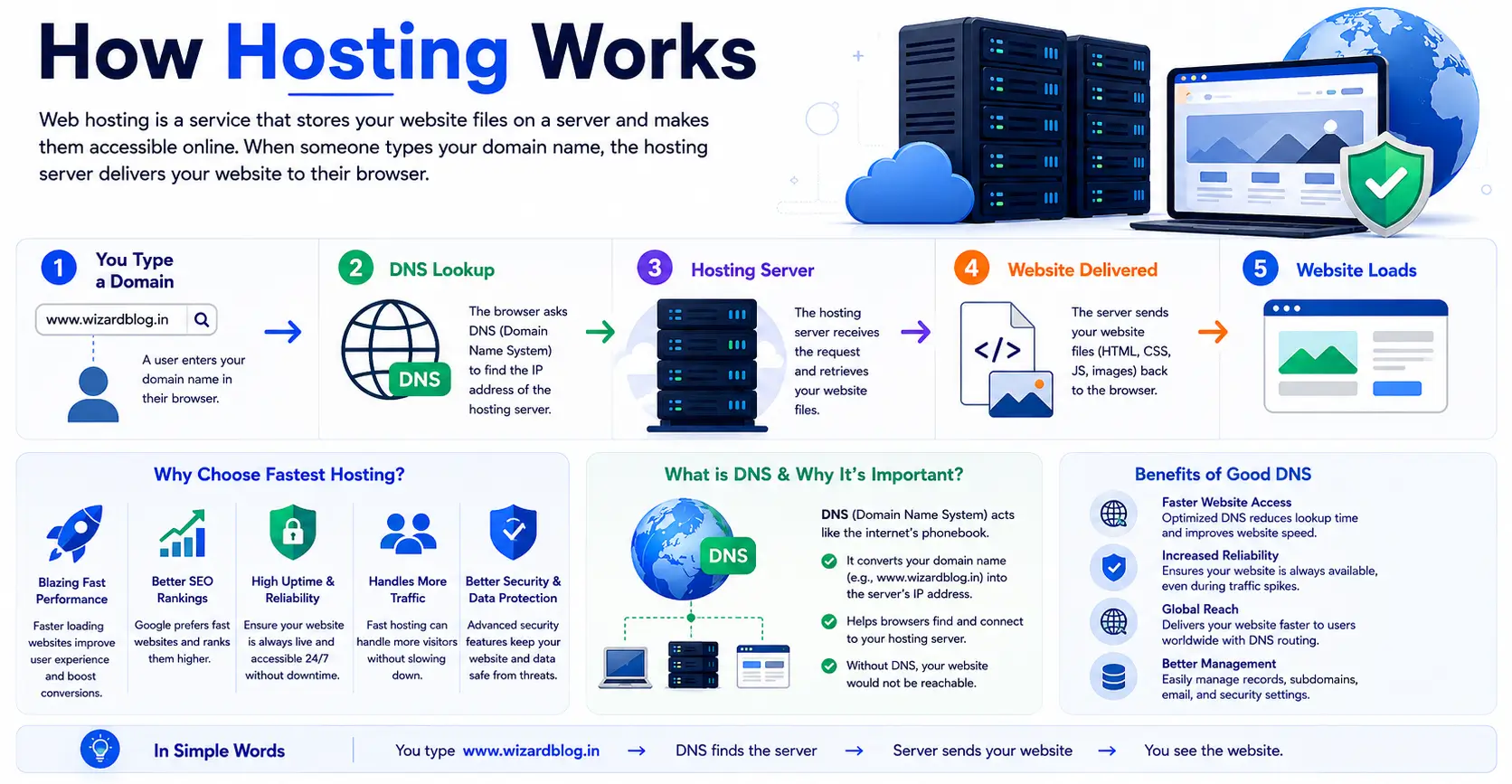
Whenever you choose hosting for your website, you always keep in mind:
- Choose the nearest data center to your target audience.
- Look for NVMe SSD storage for faster data access.
- Ensure support for the latest PHP version.
- Select a hosting provider with a 99.9% uptime guarantee.
- Choose LiteSpeed or NGINX servers for better performance.
- Look for HTTP/2 and HTTP/3 support.
- Choose hosting that can scale as your website grows.
- Avoid overcrowded shared hosting if performance is a priority.
These are some of the key factors to consider when choosing a hosting provider for your website. If you’re just getting started, a reliable shared hosting plan is usually enough—you don’t need to invest in Cloud Hosting or VPS Hosting right away. As your website grows and traffic increases, you can easily upgrade to a more powerful hosting plan. I’ve also recommended a few beginner-friendly hosting providers that offer excellent performance and make it easy to scale your resources as your website expands. All plans are starter and lower.

Perfect for Newbie
$2.09
Free Domain Name
NVMe SSD
99.99% Uptime SLA
30 Day Money-Back
Free CDN
Global Datacenters
Static Content Caching
Object Caching
Grab Now
Perfect for Newbie
$2.95
Free Domain Name
25GB NVMe SSD
99.9% Uptime Guarantee
30 Day Money-Back
Free CDN
Enhanced Security
LiteSpeed Cache for WordPress
Built-in Caching
Grab Now
Perfect for Newbie
$2.99
Free Domain Name
15GB NVMe SSD
99.95% Uptime SLA
30 Day Money-Back
Free CDN
Support AMD EPYC CPU
Support LiteSpeed
Support HTTP/2 & HTTP3
Grab Now
Perfect for Newbie
$4.99
Free Domain Name
20GB NVMe SSD
99.9% Uptime SLA
Unmetered Bandwidth
30 Day Money-Back
Free CDN
Grab NowUse the latest PHP Version
WordPress relies on PHP to process your website’s code and generate web pages. Running an outdated PHP version can slow down your website, reduce security, and cause compatibility issues with modern themes and plugins. Upgrading to a recent PHP version, such as PHP 8.5 (if supported by your host), helps your website run faster, improves security, and ensures better compatibility with the latest WordPress updates.
How to Update Your PHP Version
Updating your database is too easy. You can update this using these simple steps:-
- Log in to your hosting account.
- Open the PHP Version, PHP Selector, or MultiPHP Manager section.
- Select your website or domain.
- Choose the latest stable PHP version supported by your hosting provider.
- Save the changes and test your website to ensure everything works correctly.
Tip: Before updating PHP, create a full website backup and verify that your WordPress version, theme, and plugins are compatible with the new PHP version. This helps prevent unexpected compatibility issues.
Always Use a Lightweight Theme
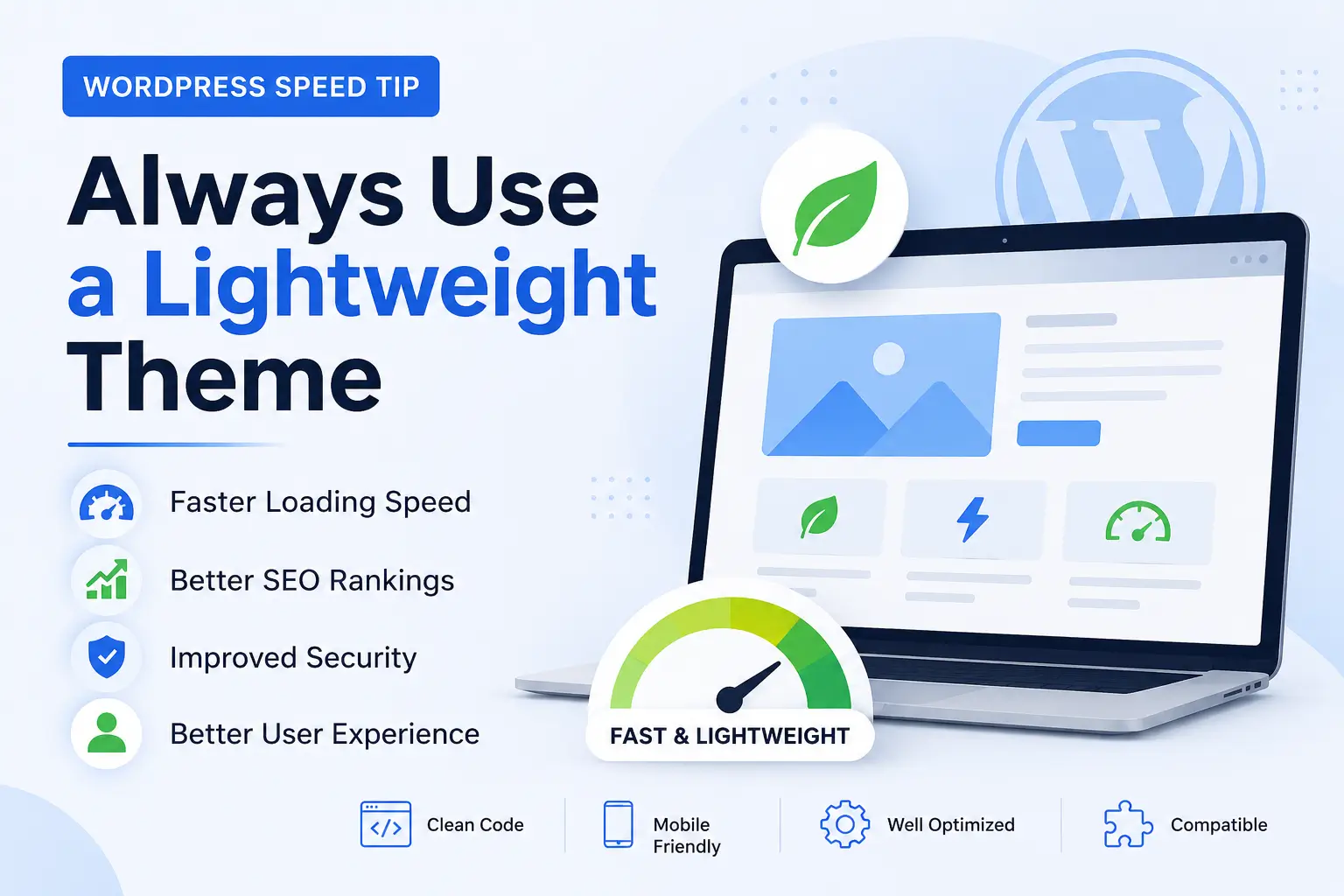
When you’re just starting out with WordPress, it’s tempting to install multiple themes or download nulled premium themes to save money. While this may seem like a cost-effective solution, it often creates bigger problems in the long run.
Nulled or poorly coded themes can contain outdated code, security vulnerabilities, hidden malware, and unnecessary features that slow down your website. They may also cause compatibility issues with the latest versions of WordPress and plugins, leading to broken layouts, errors, or even a hacked website.
Instead, choose a lightweight, well-maintained theme from a trusted developer. A quality theme is regularly updated, optimized for performance, and built to follow WordPress coding standards. It provides a solid foundation for your website, helping it load faster, remain secure, and stay compatible with future updates.
Always keep only one active theme on your WordPress website, and delete any unused themes. Removing inactive themes helps reduce maintenance and minimizes potential security risks.
If you plan to customize your website’s code or templates, always use a child theme. A child theme keeps your changes separate from the parent theme, allowing you to update the parent theme without losing your customizations. While a child theme doesn’t improve website speed, it is considered a best practice for long-term WordPress maintenance.
Popular lightweight themes you can use for your website: GeneratePress, Astra, Kadence, Neve, and the default Twenty Twenty-Five theme (It’s too tough to design if you are a beginner).
Optimize Your Image
Images are often the largest files on a webpage and one of the biggest reasons websites load slowly. Uploading large, uncompressed images increases page size, consumes more bandwidth, and delays page loading—especially for mobile users.
Before uploading an image to WordPress, resize it to the dimensions you actually need and compress it to reduce its file size without noticeably affecting quality. Whenever possible, use modern image formats like WebP or AVIF, as they provide better compression than traditional JPEG and PNG files.
For even better performance, enable lazy loading so images load only when visitors scroll to them. This reduces the initial page load time and improves Core Web Vitals.
Best Practices for Image Optimization
- Resize images before uploading them.
- Compress images without sacrificing quality.
- Use WebP or AVIF instead of JPEG or PNG whenever possible. (Use tinypng.com)
- Enable lazy loading for images and iframes.
- Avoid uploading unnecessarily large or high-resolution images.
- Use descriptive file names and add meaningful alt text for better SEO.
- Serve responsive images for different screen sizes.
Recommended Free Image Optimization Plugins
- Converter for Media – Converts images to WebP and AVIF.
- Smush – Compresses and optimizes images automatically.
- EWWW Image Optimizer – Compresses images and supports modern formats.
- ShortPixel Image Optimizer – Offers free monthly image optimization.
Remove unused plugins
Every plugin you install adds code and may consume server resources, even if it’s inactive. Delete any plugins you no longer use, and keep only the ones that are essential for your website. Fewer plugins mean less maintenance, improved security, and better overall performance.
Many WordPress users install a separate plugin for every small feature—such as a mega menu, contact form, animations, popups, or social sharing. While plugins add functionality, installing too many can increase your website’s load time and consume unnecessary server resources.
The same happens with performance optimization. Many website owners use multiple plugins for caching, CDN integration, database cleanup, image optimization, and CSS/JavaScript optimization. Instead, choose a reliable all-in-one optimization plugin that combines these features. Using fewer, well-maintained plugins helps improve performance, reduces compatibility issues, and makes your website easier to manage.
You can use this plugin to fully optimize your website.
- Generate Block (For Designing): This page builder is like a one-man army. It allows you to design your website, add animations, create contact forms, build newsletter subscription forms, and integrate them seamlessly—all without writing a single line of code or installing multiple plugins.
- Elementor (For Designing) is a powerful all-in-one page builder that lets you design your website, create responsive layouts, add animations, build contact forms, create newsletter subscription forms, and integrate them with popular marketing tools—all without writing a single line of code. Using Elementor’s built-in features can also reduce the need for multiple third-party plugins, helping you keep your website easier to manage.
- LiteSpeed (For Speed Optimization): A powerful free plugin that helps optimize your WordPress website with features like page caching, database cleanup, CSS/JavaScript optimization, image optimization, lazy loading, CDN integration, and much more. We’ll cover its setup and best settings later in this guide.
- RankMath (For SEO): A feature-rich SEO plugin available in both free and premium versions. It helps optimize your content, improve on-page SEO, generate XML sitemaps, manage redirects, add schema markup, and integrate tools like Google Search Console and Google Analytics. It also provides actionable recommendations to improve your website’s search engine visibility.
Disable Unused WordPress Features
WordPress includes several built-in features that may not be necessary for every website, such as emojis, embeds, the Heartbeat API, XML-RPC, and post revisions. Disabling features you don’t use can reduce unnecessary requests, improve performance, and lower server resource usage. Many optimization plugins, such as LiteSpeed Cache and Perfmatters, allow you to disable these features with just a few clicks.
Perfmatters & FlyingPress are paid plugins. You can use LiteSpeed Cache for free.
One Plugin can fix every need
Many factors affect your website’s speed, and optimizing them manually can take a lot of time. Fortunately, many of these performance issues can be resolved using a good optimization plugin. Throughout this guide, we’ll focus on using LiteSpeed Cache (Free) because it offers a wide range of performance features without any cost.
Why LiteSpeed Cache (Free)?
LiteSpeed Cache is one of the most powerful free WordPress optimization plugins available. It combines multiple optimization features into a single plugin, reducing the need to install separate plugins for caching, database cleanup, CSS/JavaScript optimization, lazy loading, CDN integration, image optimization, and more.
Some of its key features include:
- Page Caching
- Browser Caching
- CSS, JavaScript & HTML Minification
- Remove Unused CSS
- Delay JavaScript
- Lazy Load Images & iFrames
- Database Cleanup & Optimization
- Image Optimization (via QUIC.cloud)
- WebP Support
- CDN & Cloudflare Integration
- DNS Prefetch & Preconnect
- Object Cache (Redis/Memcached)
- Guest Mode & Guest Optimization
In the following sections, we’ll configure LiteSpeed Cache (Free) step by step to significantly improve your WordPress website’s speed and Core Web Vitals.
Conclusion
Improving your WordPress website’s speed isn’t about applying every optimization technique at once—it’s about making the right changes that have the biggest impact. Start with a reliable hosting provider, use a lightweight theme, optimize your images, remove unnecessary plugins, and enable caching. These simple steps can significantly improve your website’s performance, user experience, and search engine rankings.
Throughout this guide, we’ve covered both the fundamentals and advanced techniques to help you build a faster, more efficient WordPress website. Remember that website optimization is an ongoing process. Regularly test your website’s performance, keep WordPress, your theme, and plugins up to date, and review your Core Web Vitals to ensure your site continues to perform at its best.
A fast website doesn’t just improve PageSpeed scores—it keeps visitors engaged, builds trust, increases conversions, and supports long-term business growth. Start implementing these optimizations today, and you’ll create a better experience for both your users and search engines.