WordPress Spam protection is one of the most common challenges faced by WordPress website owners. Whether it’s unwanted comments, fake contact form submissions, bot registrations, or malicious traffic, spam can waste your time, slow down your website, and even create security risks.
Fortunately, protecting your WordPress website doesn’t have to be difficult or expensive. With the right combination of settings, plugins, and best practices, you can significantly reduce spam and keep your website running smoothly.
At WizardBlog, we’ve researched the most effective WordPress spam prevention techniques and tested popular anti-spam solutions to identify what actually works. From basic configuration changes to advanced automated protection, there are reliable methods available for every type of website.
In this comprehensive guide, you’ll learn how to stop comment spam, block spam form submissions, prevent fake user registrations, and defend your WordPress website against automated bots. We’ll cover both beginner-friendly and advanced techniques so you can build a stronger, more secure, and spam-free WordPress site in 2026.
1. Start with WordPress’s Free Built-In Anti-Spam Features
Before installing any anti-spam plugin, it’s a good idea to enable the security options that WordPress already provides. These built-in settings are free, easy to configure, and can significantly reduce basic spam attempts from bots and low-quality automated comments.
Although these settings won’t block every type of spam, they create a strong first layer of protection for your website. Since they only take a few minutes to activate, we recommend enabling them on every new WordPress site.
Configure Your WordPress Discussion Settings
The Discussion Settings section in WordPress includes several useful controls that help reduce comment spam without requiring any additional plugins. You can decide who is allowed to leave comments, control link restrictions, and choose how comments are moderated before they appear on your website.
To access these options: WordPress Dashboard → Settings → Discussion
From here, you can adjust important anti-spam settings, such as:
- Require users to enter a name and email before posting a comment.
- Hold comments for moderation before they are published.
- Automatically flag comments containing multiple links.
- Create a list of blocked keywords, IP addresses, or email addresses.
- Disable comments on older posts if they no longer need discussions.
These simple settings won’t eliminate spam completely, but they greatly reduce unwanted comments and make your website much easier to manage. Once you’ve enabled these options, you can add a dedicated anti-spam plugin for even stronger protection.
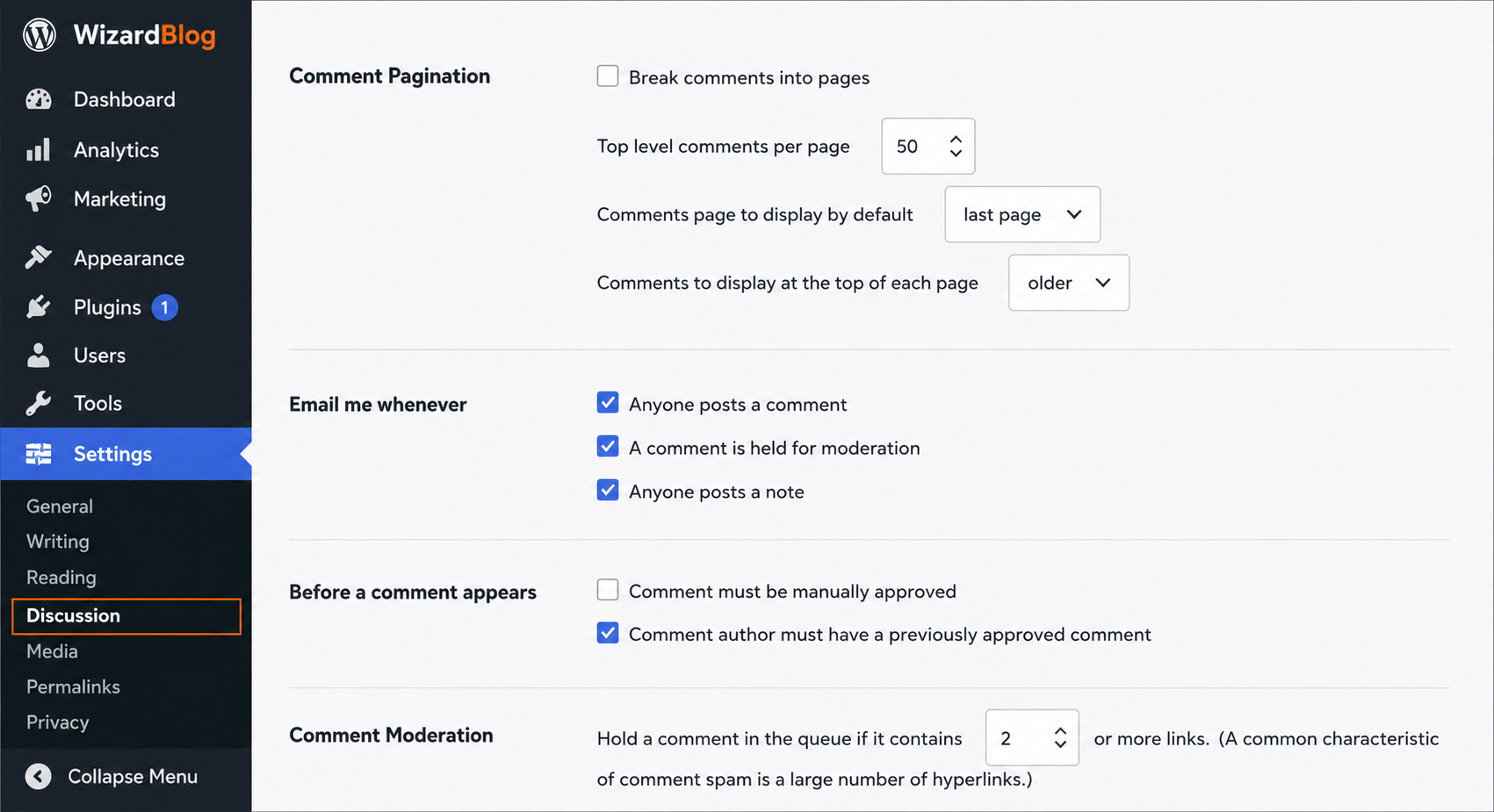
One of the most effective anti-spam features in WordPress is Manual Comment Approval. Instead of publishing every new comment immediately, WordPress places incoming comments into a moderation queue where you can review them first.
This simple setting helps prevent spam, fake promotions, and harmful links from becoming visible on your website. Even if automated spam slips past other filters, it won’t appear publicly until you approve it.
To enable this feature:
- Go to WordPress Dashboard → Settings → Discussion.
- Scroll down to the Before a comment appears section.
- Check the box next to Comment must be manually approved.
- Click Save Changes.
Once enabled, every new comment will remain in the moderation queue until you review and approve it. This gives you complete control over what gets published on your WordPress site and helps keep your comment section clean, trustworthy, and free from spam.
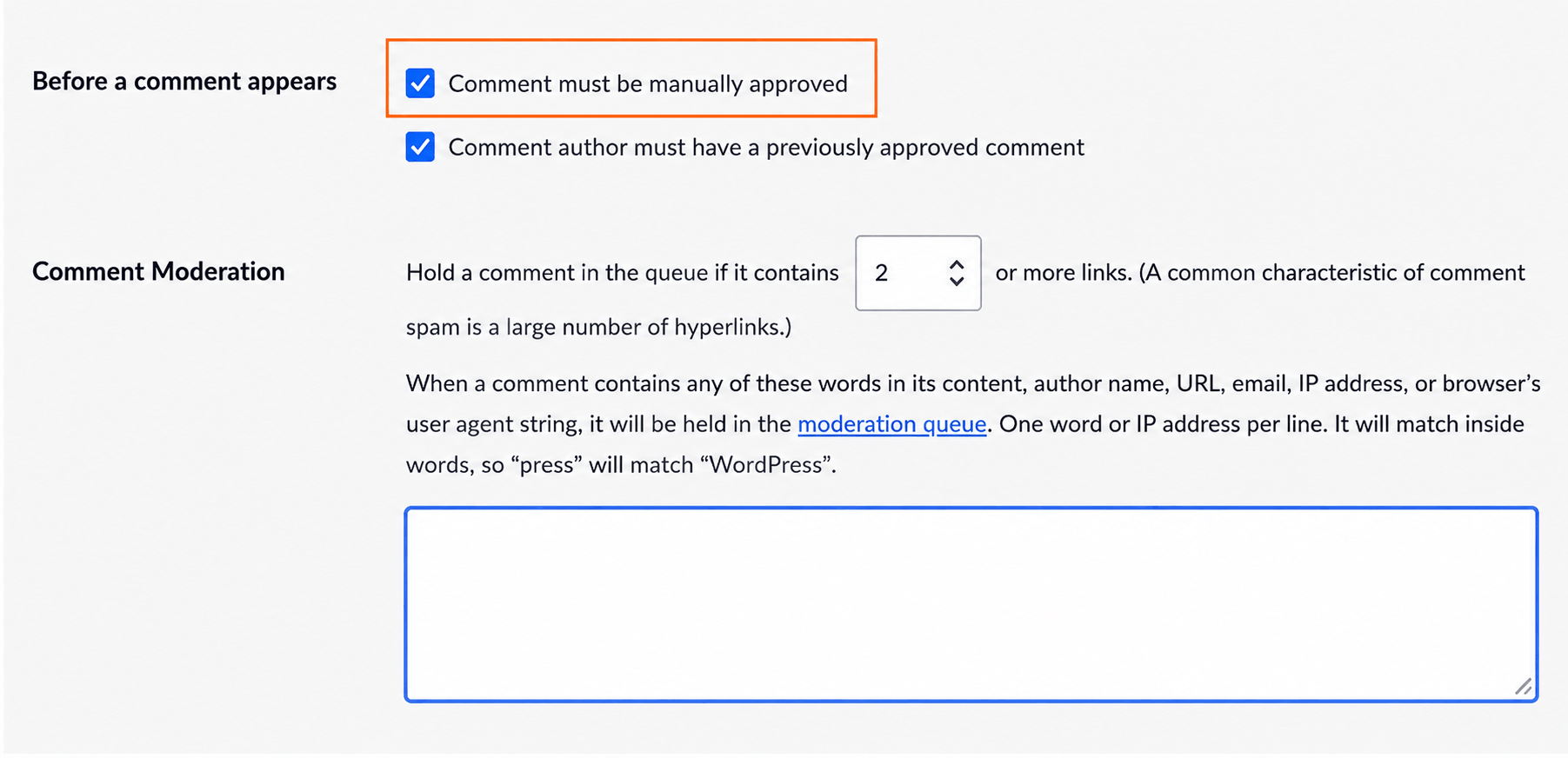
Another useful setting for WordPress spam protection is Comment author must have a previously approved comment. When this option is enabled, trusted visitors whose comments have already been approved can post again without waiting for manual moderation.
While this can save time, it’s still important to review your live comments regularly. Even approved users can occasionally post unwanted links or irrelevant content, so periodic moderation helps keep your website clean and professional.
Next, scroll down to the Comment Moderation section. Here, WordPress lets you automatically hold comments that contain multiple links—a common sign of spam.
By default, the option “Hold a comment in the queue if it contains 2 or more links” is set to 2. Since many spam comments include promotional URLs, reducing this value to 1 makes your WordPress spam protection much more effective. Any comment containing even a single link will be sent to the moderation queue, allowing you to review it before it appears on your website.
This small adjustment provides an extra layer of security and helps prevent spam comments from reaching your visitors.
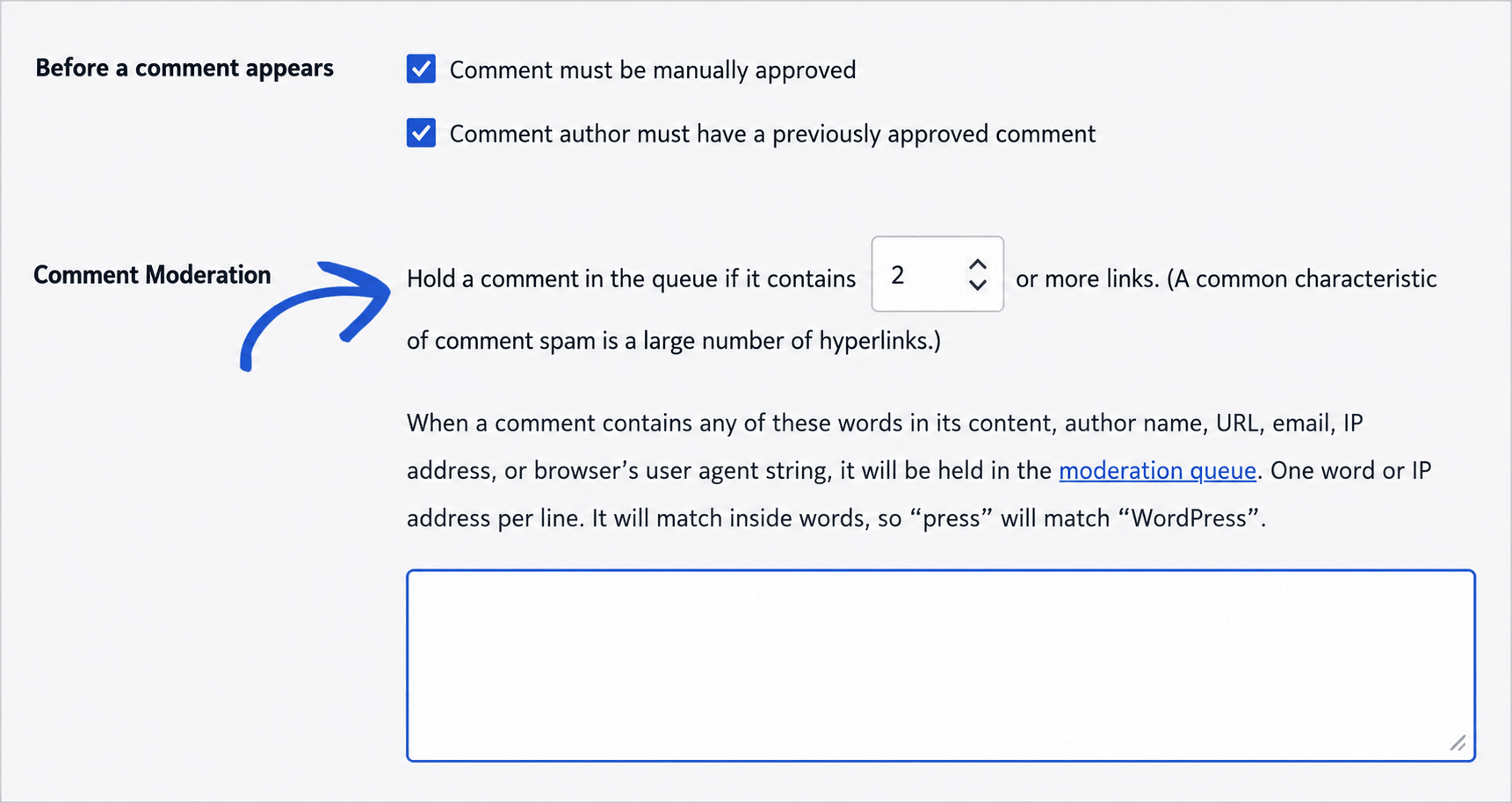
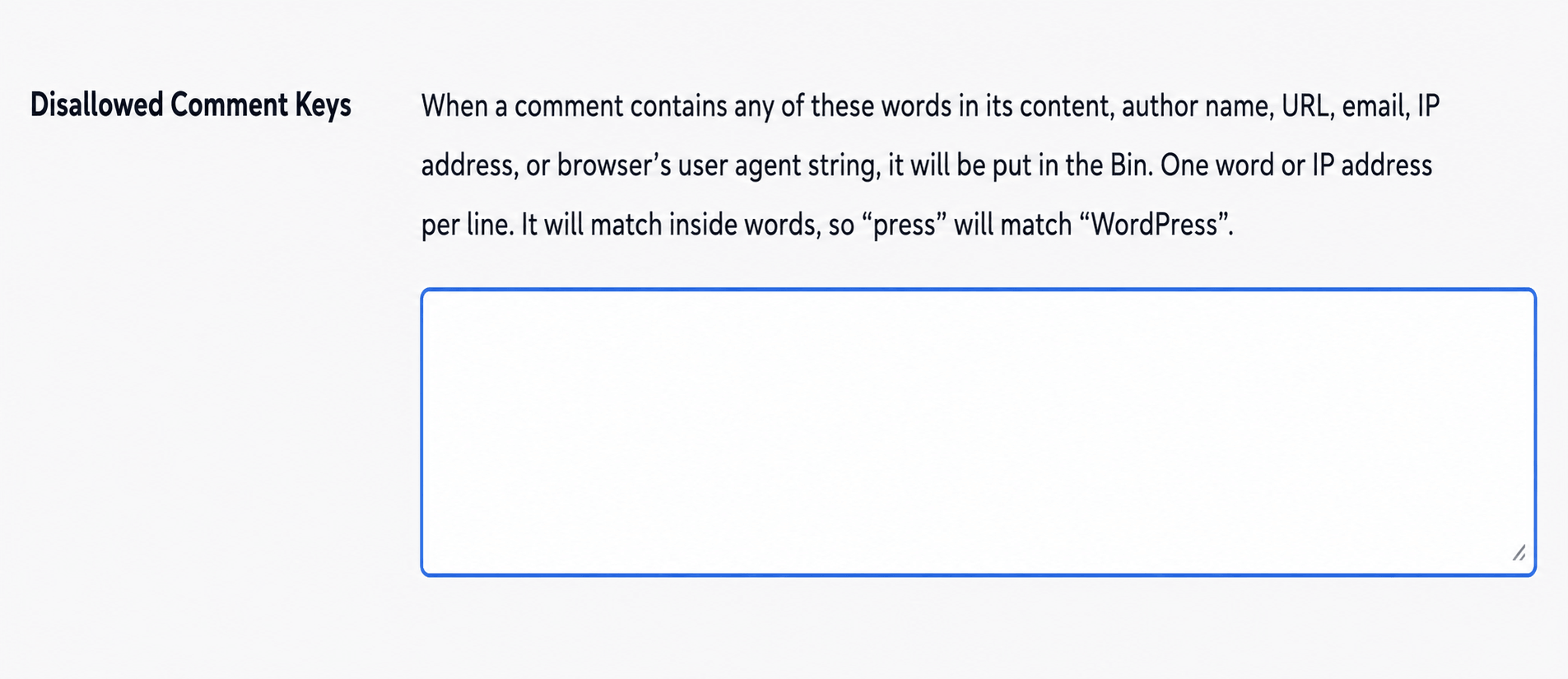
Another built-in feature that improves WordPress spam protection is the Comment Blocklist. This setting allows WordPress to automatically reject comments that contain specific words, email addresses, URLs, IP addresses, or usernames that you consider spam.
Instead of manually reviewing these unwanted submissions, WordPress checks every incoming comment against your blocklist. If it finds a match, the comment is automatically discarded, helping you keep your website free from spam and malicious content.
To configure this feature:
- Go to WordPress Dashboard → Settings → Discussion.
- Scroll down to the Disallowed Comment Keys section.
- Enter the words, phrases, email addresses, URLs, or IP addresses you want to block.
- Add one keyword or entry per line for the best results.
- Click Save Changes to activate your settings.
Regularly updating your blocklist with new spam keywords is a simple but effective way to strengthen your WordPress spam protection and reduce the amount of unwanted comments reaching your site.
Require a Name and Email for Better WordPress Spam Protection
A simple way to strengthen WordPress spam protection is to require visitors to provide their name and email address before they can submit a comment. This small step discourages automated spam bots and anonymous users from posting low-quality or unwanted comments.
Most legitimate visitors are comfortable entering their name and email, making this setting an effective way to encourage genuine discussions while reducing spam.
You can enable this option by following these steps:
- Go to WordPress Dashboard → Settings → Discussion.
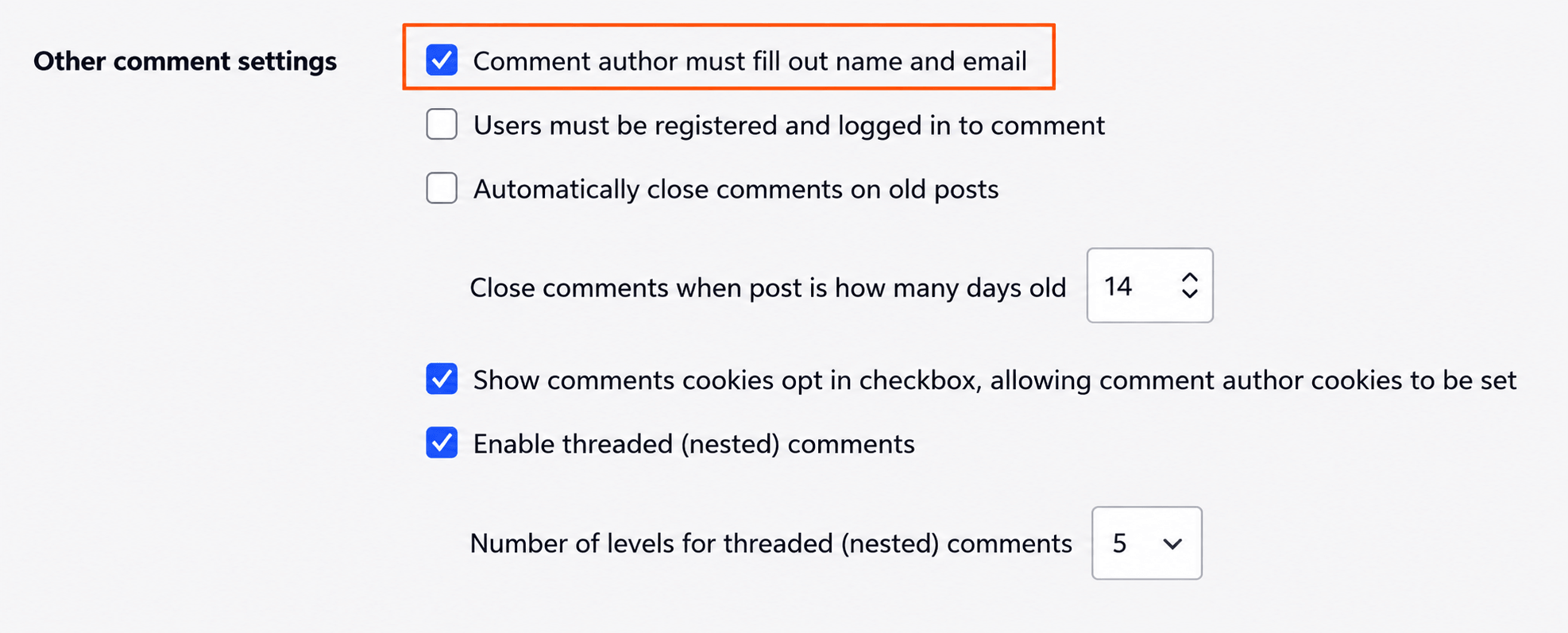
- Scroll down to the Other Comment Settings section.
- Check the box labeled Comment author must fill out name and email.
- Save your changes.
For even stronger WordPress spam protection, you can also keep manual comment approval enabled for first-time commenters. Once a visitor has an approved comment, you can choose to allow future comments without moderation if it suits your website. This approach helps maintain a safe, spam-free comment section while making it easier for trusted community members to participate.
If you’re new to handling website comments, learning the moderation process can make a big difference in your WordPress spam protection strategy. Understanding how to approve, edit, reply to, or remove comments helps you keep discussions relevant while preventing spam from appearing on your site.
For a complete walkthrough, check out our Beginner’s Guide to Moderating Comments in WordPress. It explains how to manage the moderation queue, approve genuine comments, block spam efficiently, and maintain a clean, engaging comment section with strong WordPress spam protection.
Disable Comments on Pages Where They Aren’t Needed
One of the easiest ways to improve WordPress spam protection is to disable comments on content that doesn’t require visitor discussions. If your website is a business site, portfolio, landing page, or documentation site, allowing comments may provide little value while creating unnecessary opportunities for spam.
By turning off comments on pages where user interaction isn’t needed, you can eliminate a major source of spam and reduce the time spent moderating unwanted submissions.
If you want to disable comments across your entire website, the most reliable method is to use a small code snippet. Instead of editing your theme’s functions.php file—which can cause problems after theme updates—we recommend using a code snippets plugin such as WPCode. This approach is safer, easier to manage, and ensures your WordPress spam protection settings remain intact even when you update or change your theme.
Disabling unnecessary comments is a simple but highly effective step toward keeping your WordPress website secure, professional, and free from spam.
If you’re looking for a complete walkthrough, our detailed tutorial on how to disable comments in WordPress explains every available method, from turning off comments across your entire website to disabling them only on selected posts or pages. Choosing the right method can strengthen your WordPress spam protection while keeping your site easy to manage.
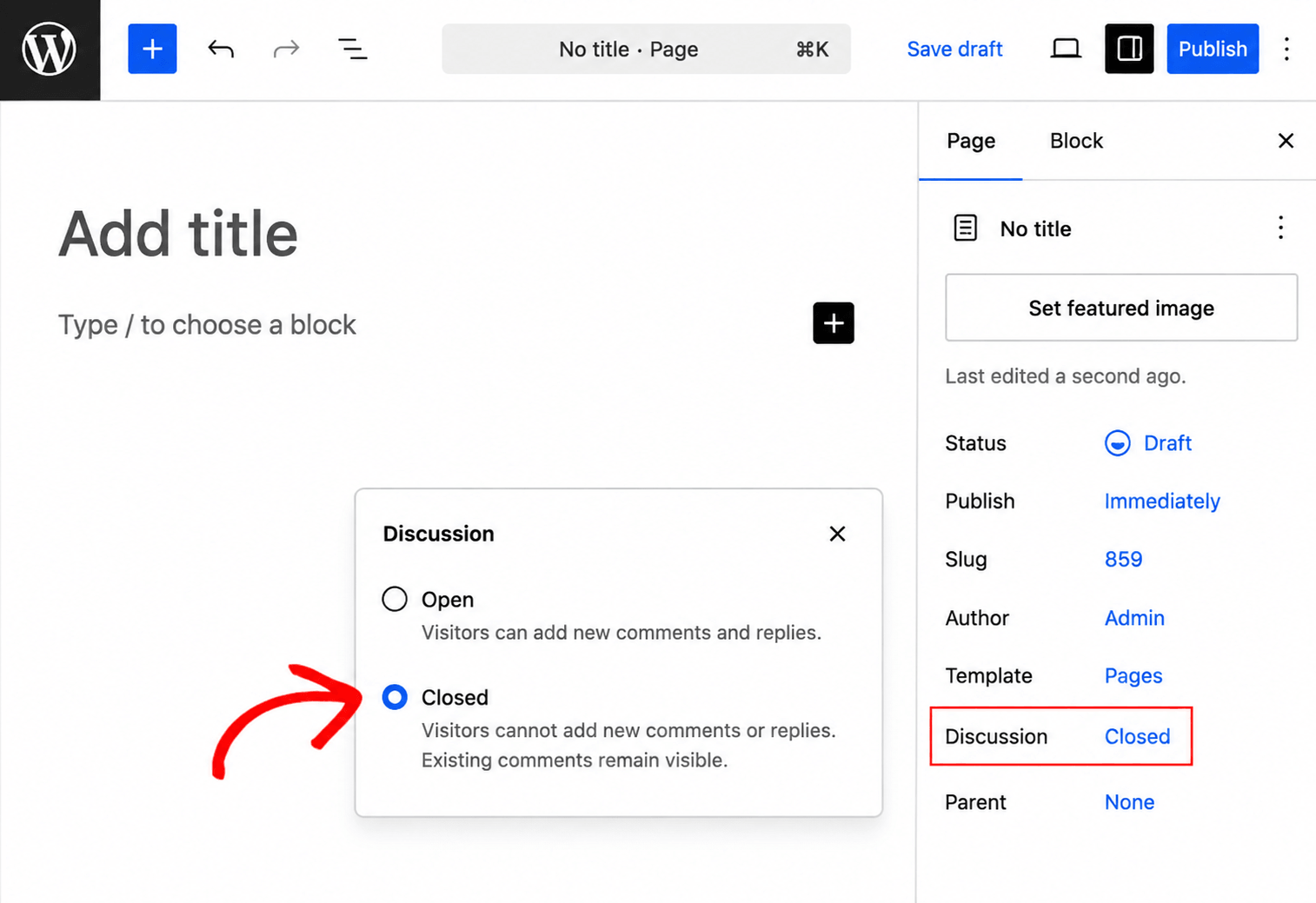
If you don’t want to disable comments everywhere, WordPress also lets you switch them off for individual pages. This is a great option for pages such as About Us, Contact, Privacy Policy, or Terms & Conditions, where visitor comments are usually unnecessary.
To disable comments on a single page:
- Open the page in the WordPress Block Editor.
- In the right-hand settings panel, click Discussion.
- Uncheck Allow comments or change the discussion status to Closed.
- Click Update to save your changes.
Using this selective approach improves WordPress spam protection by reducing the number of pages that can receive spam comments while still allowing discussions on blog posts where visitor engagement is valuable.
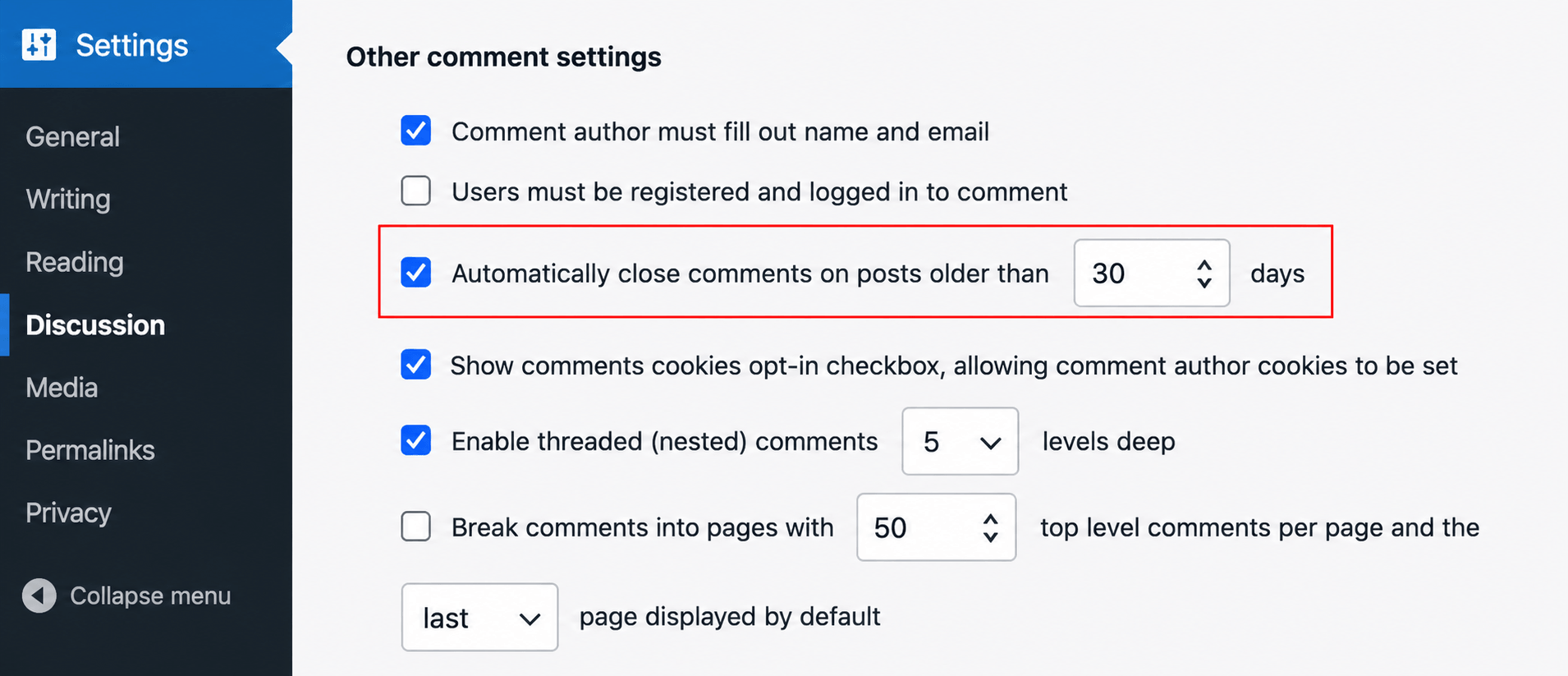
An easy way to improve WordPress spam protection is to automatically disable comments on older blog posts. Spam bots often target outdated content because it receives less attention from site owners, making old posts a common source of spam comments.
If you no longer expect discussions on older articles, there’s no reason to leave the comment section open. Closing comments after a specific period helps reduce spam while keeping your moderation queue under control.
How to Automatically Close Comments in WordPress
- Log in to your WordPress Dashboard.
- Navigate to Settings → Discussion.
- Scroll down to the Other Comment Settings section.
- Check the option Automatically close comments on posts older than [X] days.
- Enter the number of days you prefer, such as 30, 60, or 90 days.
- Click Save Changes.
Choosing a reasonable time limit depends on your website. News websites may close comments after 30 days, while blogs with evergreen content may prefer 60 or 90 days. This simple setting strengthens your WordPress spam protection by preventing bots from posting on forgotten content and reducing the amount of spam you need to manage manually.
Disable Trackbacks and Pingbacks to Reduce Spam
Another simple way to improve WordPress spam protection is by disabling trackbacks and pingbacks. These features were originally introduced to notify you whenever another website linked to one of your blog posts. In the early days of blogging, they helped website owners discover related content and build connections with other bloggers.
Today, however, trackbacks and pingbacks are rarely used for legitimate purposes. Instead, they have become a common target for spammers who send fake link notifications to promote low-quality or malicious websites. These notifications can clutter your dashboard and create unnecessary moderation work.
By turning off this feature, you can eliminate an entire source of spam and keep your WordPress dashboard cleaner.
How to Disable Trackbacks and Pingbacks
Follow these steps to disable link notifications:
- Log in to your WordPress Dashboard.
- Go to Settings → Discussion.
- Under the Default Post Settings section, locate the option Allow link notifications from other blogs (pingbacks and trackbacks) on new posts.
- Uncheck the box next to this option.
- Click Save Changes.
Disabling trackbacks and pingbacks is a quick but effective step toward stronger WordPress spam protection. While it won’t affect your site’s SEO or prevent other websites from linking to your content, it will stop fake notifications from filling your dashboard and help you focus on managing genuine user interactions.
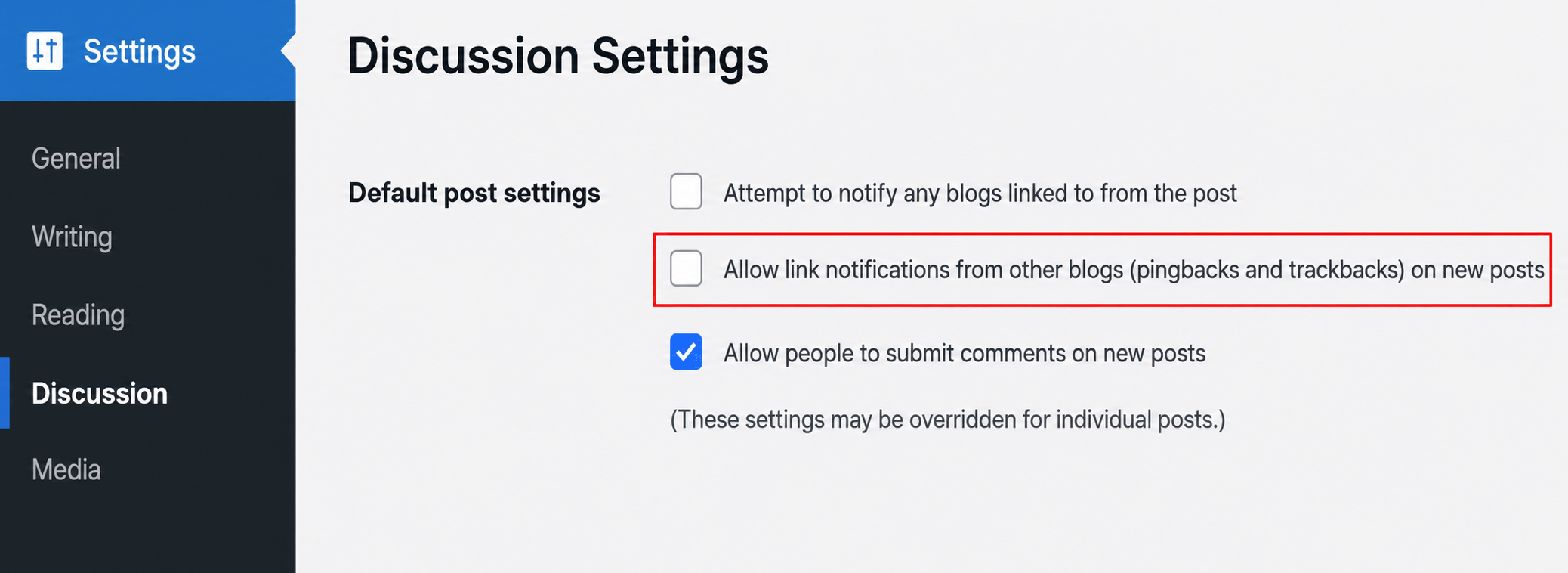
After disabling trackbacks and pingbacks, be sure to click the Save Changes button at the bottom of the page to apply your new settings. This simple step helps strengthen your WordPress spam protection by preventing future posts from accepting unwanted pingback and trackback notifications.
Keep in mind that this setting only affects new posts you publish after making the change. Any older posts on your website will continue to allow trackbacks and pingbacks unless you disable them separately.
If you also want to protect your existing content, follow our detailed guide on how to disable trackbacks and pingbacks on existing WordPress posts. Updating both new and old posts provides more complete WordPress spam protection, reducing spam notifications and keeping your WordPress dashboard clean and easier to manage.
2. Use AI-Powered WordPress Spam Protection
Traditional spam filters can stop basic bots, but today’s AI-generated spam is much more advanced. As spam techniques continue to evolve, website owners need smarter tools that can identify suspicious activity before it reaches their website.
That’s where AI-powered WordPress spam protection comes in. These advanced security solutions automatically detect and block spam across your WordPress comments, contact forms, login pages, and user registration forms without requiring visitors to solve CAPTCHAs. This creates a better user experience while still protecting your website from automated attacks.
Unlike traditional spam filters that rely only on keyword matching, AI-based tools analyze visitor behavior, submission patterns, IP reputation, and other signals to determine whether a request is genuine or spam. As a result, they can stop sophisticated bots with greater accuracy while reducing false positives.
Many modern WordPress spam protection plugins also work silently in the background, so legitimate visitors can submit comments or forms without interruptions. Since no CAPTCHA is displayed, user experience and conversion rates remain unaffected.
Another major advantage is detailed spam reporting. Most AI-powered solutions provide a complete activity log, allowing you to review blocked submissions, understand why they were flagged, and fine-tune your spam protection settings when needed.
If your website receives frequent spam comments or form submissions, upgrading to an AI-powered WordPress spam protection solution is one of the most effective ways to keep your site secure while maintaining a smooth experience for real visitors.
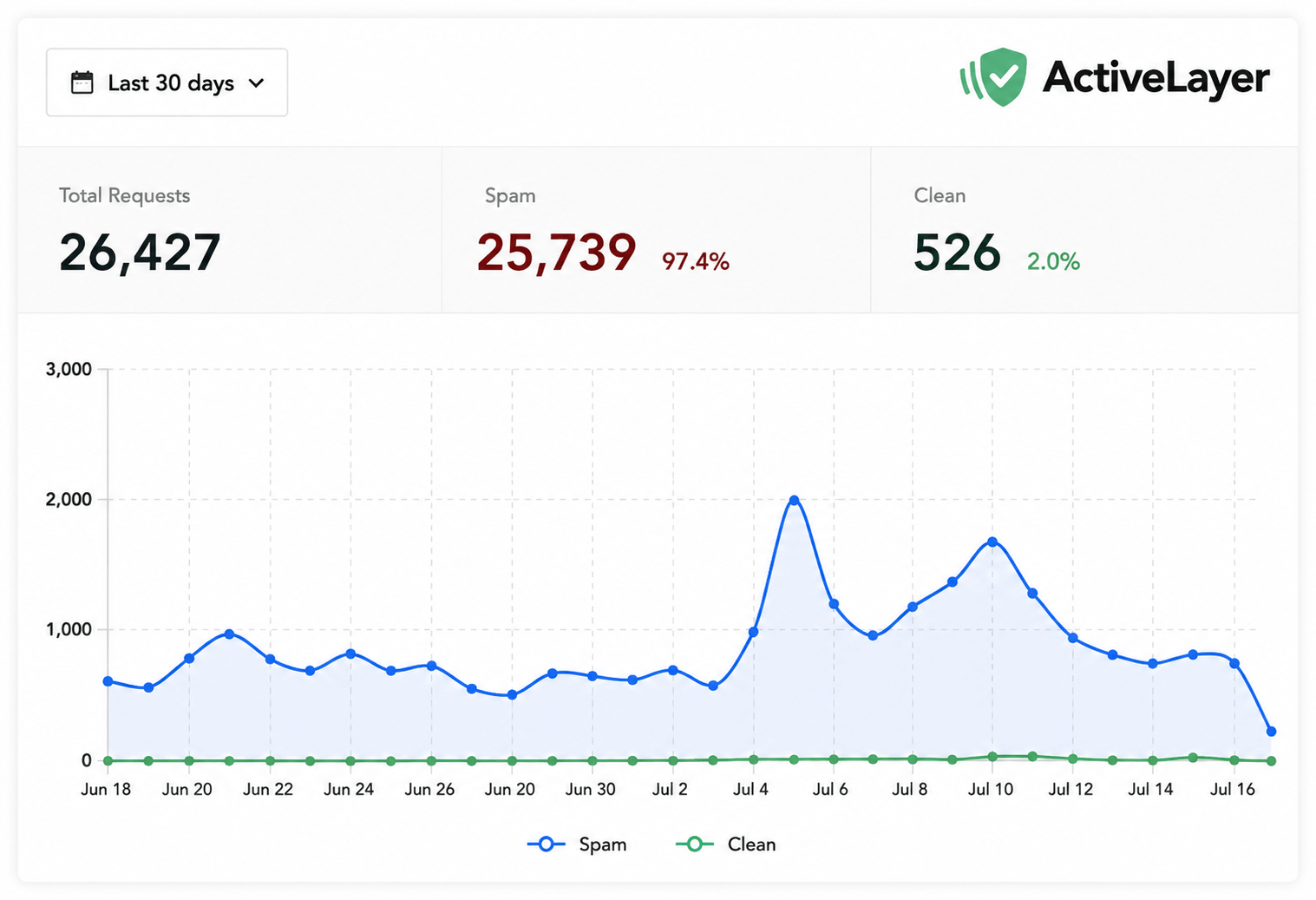
Many modern WordPress spam protection plugins offer free plans, making it easy to protect a new website without spending money upfront. Most free versions include a limited number of spam scans each month, while premium plans unlock higher limits, advanced AI detection, detailed reports, and priority support at an affordable monthly cost.
When selecting a WordPress spam protection solution, it’s important to choose a plugin that fits your website’s size and traffic. Some plugins focus on AI-powered spam detection, while others rely on large spam databases and behavioral analysis to identify suspicious submissions.
Some of the most trusted WordPress spam protection plugins include:
- ActiveLayer – Uses AI-powered technology to block spam comments, contact form submissions, and registration spam with minimal impact on user experience.
- Akismet – A long-established spam filtering plugin that works well for personal blogs and smaller websites.
- CleanTalk – A cloud-based spam protection service that helps block spam across comments, forms, registrations, and WooCommerce checkouts without requiring CAPTCHAs.
Use Only One Spam Protection Plugin Although multiple plugins may seem like they provide better security, installing more than one WordPress spam protection plugin is generally not recommended. Running two spam filters at the same time can cause conflicts, increase false positives, and even block legitimate visitors from submitting comments or contact forms.
For the best results, install only one trusted spam protection plugin and configure it correctly. Most leading WordPress spam protection solutions integrate seamlessly with popular WordPress contact form plugins, including WPForms, Contact Form 7, Fluent Forms, Gravity Forms, and Formidable Forms, allowing you to protect every form on your website from a single dashboard.
Choosing one reliable spam protection tool and keeping it properly configured is the most effective way to reduce spam while ensuring a smooth experience for genuine visitors.
3. Advanced Tips for Better WordPress Spam Protection
If you’ve already enabled WordPress’s built-in anti-spam settings and installed a reliable WordPress spam protection plugin, your website is already well protected against most spam attacks.
However, if you prefer not to use a premium AI-based solution or want to add another layer of security, there are several free methods that can further reduce comment spam. These techniques work well alongside your existing spam protection settings and help keep your website safe from automated bots.
Add a Free CAPTCHA to Your Comment Form
One of the easiest ways to improve WordPress spam protection is by adding a CAPTCHA to your comment form. CAPTCHA presents a simple verification challenge that real visitors can complete quickly, while automated spam bots usually fail to pass it.
Among the available options, Cloudflare Turnstile is an excellent choice because it offers strong protection without creating a frustrating experience for genuine users. Unlike traditional CAPTCHAs that require selecting images or solving puzzles, Cloudflare Turnstile works quietly in the background for most visitors.
How to Enable Cloudflare Turnstile in WordPress
- Install and activate the Simple Cloudflare Turnstile plugin from the WordPress Plugin Directory.
- Create a free Cloudflare account if you don’t already have one.
- Generate your Turnstile Site Key and Secret Key from your Cloudflare dashboard.
- Enter these keys into the plugin’s settings page.
- Scroll to the Enable Turnstile on Your Forms section.
- Select the forms you want to protect, including your WordPress comment form.
- Click Save Changes to activate the settings.
Once enabled, Cloudflare Turnstile will begin protecting your comments and other forms from automated spam without interrupting the user experience. When combined with other WordPress spam protection techniques, it provides an additional security layer that helps block bots while allowing legitimate visitors to comment with ease.
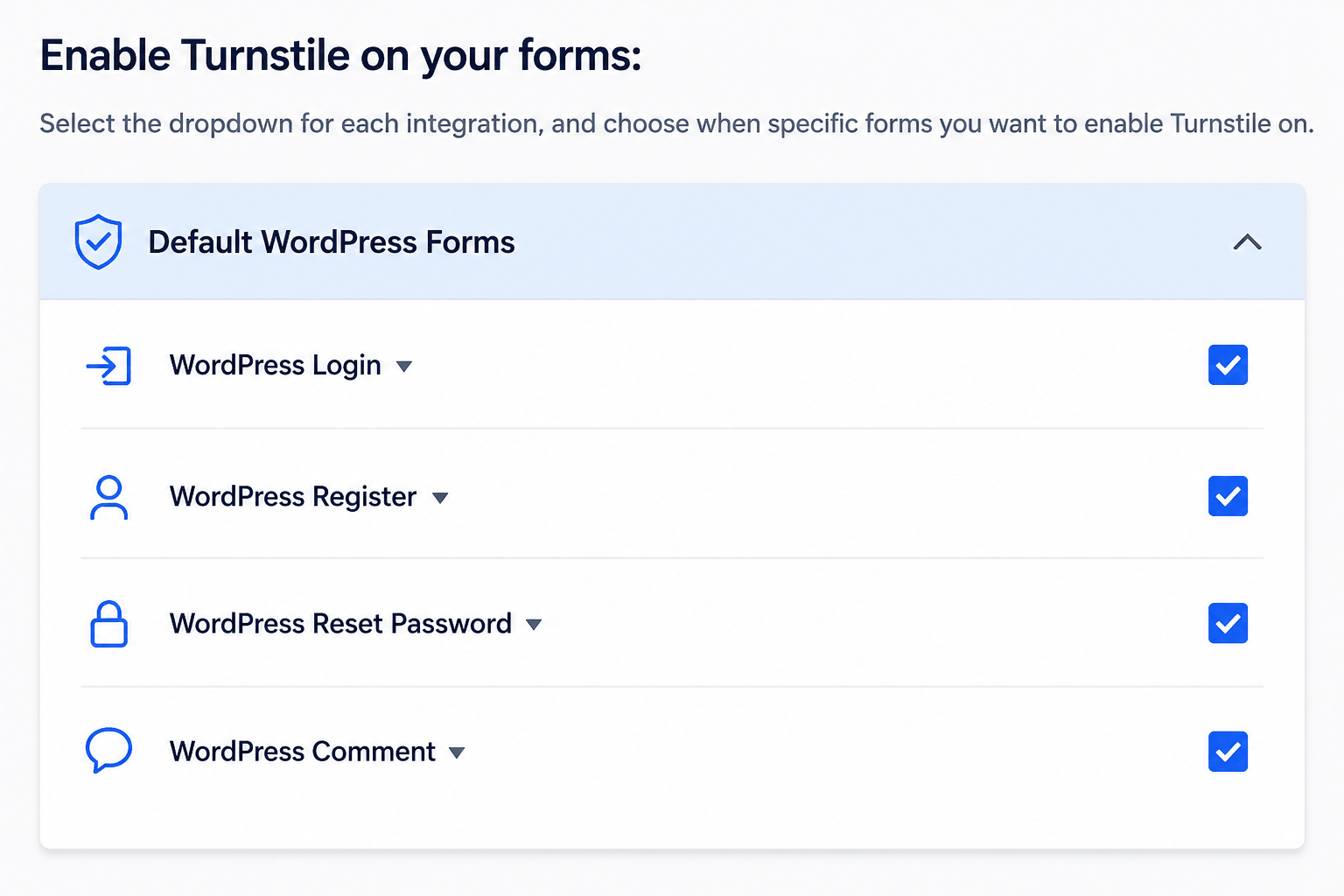
Adding a CAPTCHA is one of the easiest ways to strengthen WordPress spam protection. CAPTCHA helps distinguish real visitors from automated bots by requiring a quick verification before a comment or form is submitted.
Among the available solutions, Cloudflare Turnstile is a popular choice because it provides strong protection while keeping the user experience smooth. Unlike traditional CAPTCHAs, it works quietly in the background for most users and doesn’t require solving image puzzles or typing difficult text.
If you need help setting it up, you can follow our complete tutorial on how to add Cloudflare Turnstile CAPTCHA in WordPress.
Another alternative is Google reCAPTCHA, which can be added using plugins such as Advanced Google reCAPTCHA. While it still offers reliable security, many website owners now prefer Cloudflare Turnstile because it provides a more user-friendly experience and generous free usage limits, making it an excellent choice for long-term WordPress spam protection.
Require Users to Log In Before Commenting
Another effective WordPress spam protection technique is limiting comments to registered users only. Since automated spam bots usually target public comment forms, requiring visitors to create an account and sign in significantly reduces spam submissions.
This method works especially well for:
- Membership websites
- Online communities
- Learning management systems (LMS)
- Private forums
- Subscription-based websites
Because visitors must register before posting, it adds an extra layer of verification that discourages most spam bots from attempting to submit comments.
For public blogs that encourage open discussions, however, requiring login may reduce user engagement. In those cases, using an AI-powered spam filter or a CAPTCHA solution is usually a better option because it protects your site without creating additional steps for genuine visitors.
How to Require Login Before Commenting
- Open your WordPress Dashboard.
- Navigate to Settings → Discussion.
- Scroll down to the Other Comment Settings section.
- Check the option Users must be registered and logged in to comment.
- Click Save Changes.
Enabling this setting is another simple way to improve WordPress spam protection, ensuring that only authenticated users can participate in discussions while reducing unwanted spam comments.
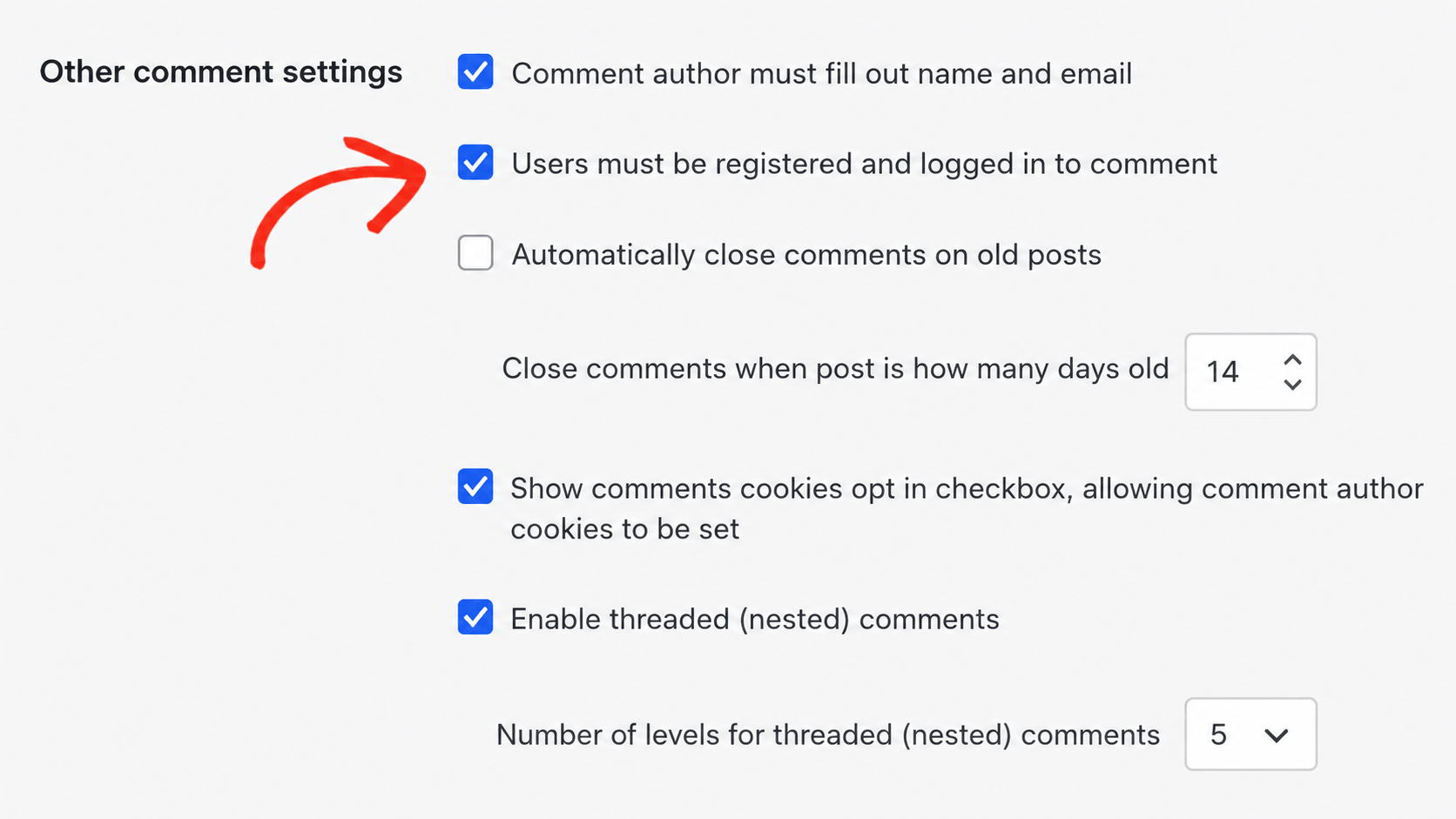
After updating your settings, click the Save Changes button to apply them. Saving your configuration ensures your new WordPress spam protection settings become active immediately, helping reduce unwanted spam comments and keeping your website’s discussion area more secure.
Use Antispam Bee for Free Keyword and Spam Pattern Detection
If you’re looking for a free way to strengthen WordPress spam protection, Antispam Bee is a great plugin to consider. While basic spam filters block many automated submissions, some advanced spam comments are designed to look like genuine human messages. Antispam Bee adds another layer of protection by analyzing comments for suspicious keywords, spam patterns, and other signals before they are published.
One of the biggest advantages of Antispam Bee is that it is completely free and privacy-friendly. Unlike many spam protection services, it doesn’t require an API key, paid subscription, or account registration. Everything works directly on your WordPress website, making it an excellent choice for users who want a simple and lightweight WordPress spam protection solution.
How to Configure Antispam Bee
After installing and activating the plugin:
- Go to WordPress Dashboard → Settings → Antispam Bee.
- Review the available spam detection options.
- Enable the filtering rules that best match your website’s needs.
- Save your settings to activate the protection.
Once configured, Antispam Bee automatically scans incoming comments and filters suspicious submissions before they reach your moderation queue. When combined with other WordPress spam protection techniques such as comment moderation, CAPTCHA, or AI-powered spam filtering, it helps keep your website cleaner while reducing the amount of manual moderation required.
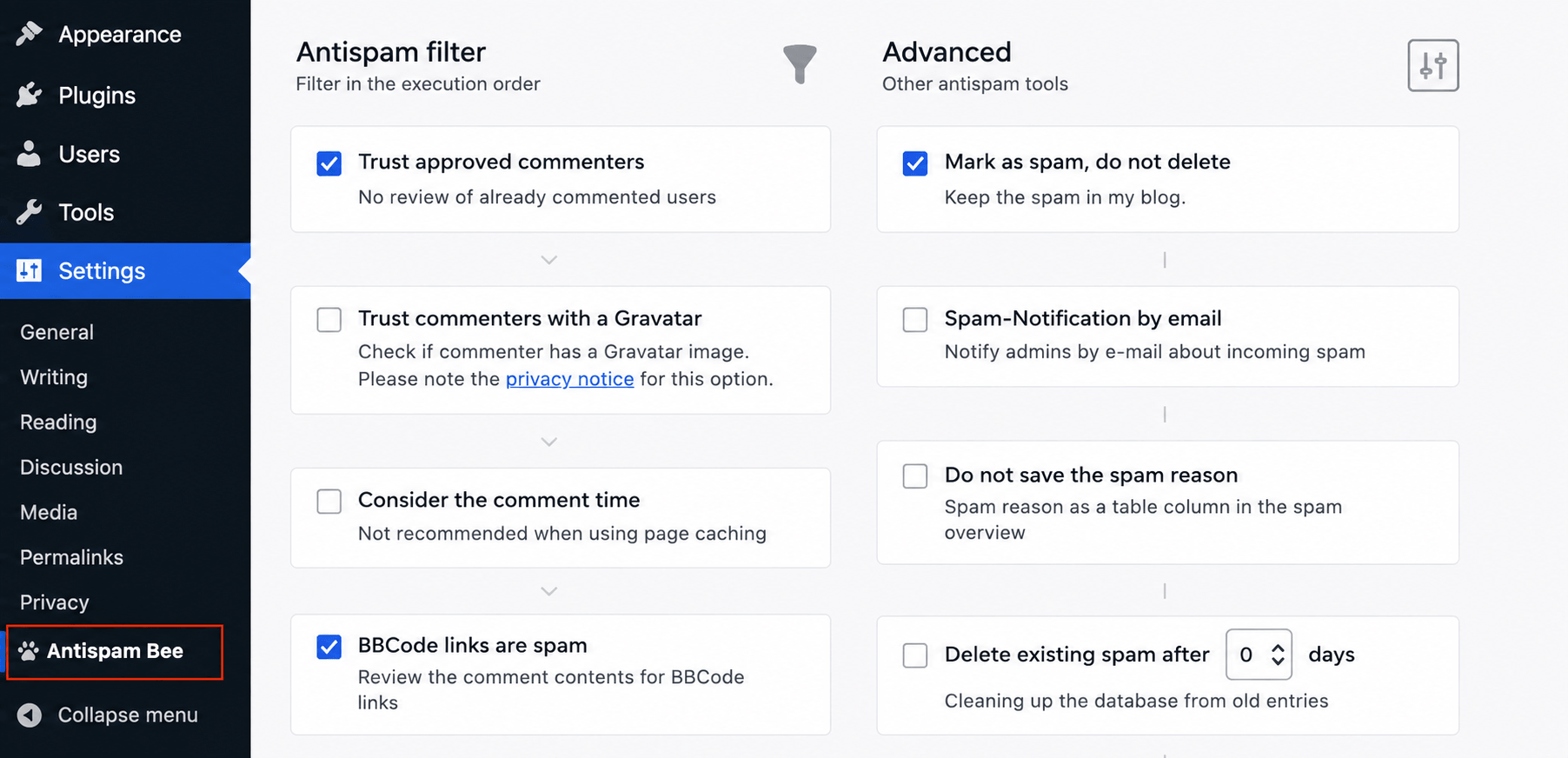
Recommended Antispam Bee Settings for Better WordPress Spam Protection
To get the best results from Antispam Bee, it’s important to enable the most effective spam detection options. These settings improve WordPress spam protection by filtering suspicious comments before they appear on your website.
For the best protection, we recommend enabling the following options:
- Trust approved commenters – Allows previously approved users to comment more smoothly while maintaining security.
- Mark spam instead of deleting it immediately – Suspicious comments are moved to the spam folder, giving you the opportunity to review them before they’re permanently removed.
- Enable Regular Expressions (Regex) – This feature helps Antispam Bee identify common spam keywords, text patterns, and malicious links that are frequently used by spam bots.
- Check the Local Spam Database – This option compares new comments against spam previously detected on your website, allowing the plugin to recognize recurring spam attempts more accurately.
These recommended settings work together to create stronger WordPress spam protection, reduce manual moderation, and help keep your comment section clean without affecting legitimate visitors.
The Advanced section in Antispam Bee includes several options that can further improve WordPress spam protection while keeping your website clean and your database optimized.
One useful setting is the ability to automatically remove spam comments after a specified number of days. Instead of manually deleting old spam entries, you can let the plugin clean them up automatically, helping reduce unnecessary database clutter and improve your site’s performance over time.
Another recommended setting is to disable spam email notifications. If your website receives frequent spam attempts, notification emails can quickly overwhelm your inbox and make it difficult to notice important messages. Turning these alerts off allows Antispam Bee to handle spam silently while you review the spam folder only when needed.
Remove the Website URL Field from the Comment Form
For even stronger WordPress spam protection, consider removing the Website (URL) field from your comment form. Most legitimate visitors rarely use this field, but spambots often exploit it to promote spammy or malicious websites by inserting backlinks.
Eliminating the URL field reduces link spam and makes your comment form less attractive to automated bots without affecting the overall commenting experience for genuine users.
If you need help with this process, follow our detailed tutorial on how to remove the website URL field from the WordPress comment form, where we explain the steps required to disable it safely. This simple adjustment, combined with the other settings above, adds another layer of WordPress spam protection and helps maintain a cleaner, higher-quality comment section.
4. How to Stop Contact Form Spam in WordPress
While comment spam is common, contact forms are often the biggest target for spam bots. Fake inquiries, promotional messages, and automated submissions can quickly fill your inbox, making it difficult to identify genuine customer requests. That’s why adding strong WordPress spam protection to your contact forms is just as important as protecting your comment section.
Most modern WordPress form builder plugins include built-in spam prevention tools that can block unwanted submissions before they reach your email. These features help reduce manual moderation while providing a better experience for real visitors.
Popular form builders such as WPForms, Fluent Forms, Gravity Forms, and Formidable Forms all offer spam protection options, including anti-spam tokens, honeypots, CAPTCHA integration, and AI-powered filtering.
For this tutorial, we’ll use WPForms because it is beginner-friendly and offers excellent WordPress spam protection features in both its free and premium versions.
Enable the Built-In Anti-Spam Protection
The easiest way to strengthen WordPress spam protection for your contact forms is to enable the plugin’s built-in anti-spam feature. Modern form builders use invisible security techniques, such as anti-spam tokens and honeypot technology, to detect automated bots without interrupting legitimate users.
Unlike traditional CAPTCHA systems, these methods work quietly in the background, allowing genuine visitors to submit forms normally while blocking most automated spam attempts.
How to Enable Anti-Spam Protection in WPForms
- Open the form you want to protect in WPForms.
- Navigate to Settings → Spam Protection & Security.
- Make sure Enable Modern Anti-Spam Protection is turned On.
- Save your form to apply the changes.
This feature is usually enabled automatically for newly created forms, but it’s always a good idea to verify the setting before publishing your form.
Combining this built-in feature with CAPTCHA or an AI-powered spam filtering solution creates a much stronger WordPress spam protection strategy, helping keep your contact forms secure while ensuring a smooth experience for genuine visitors.
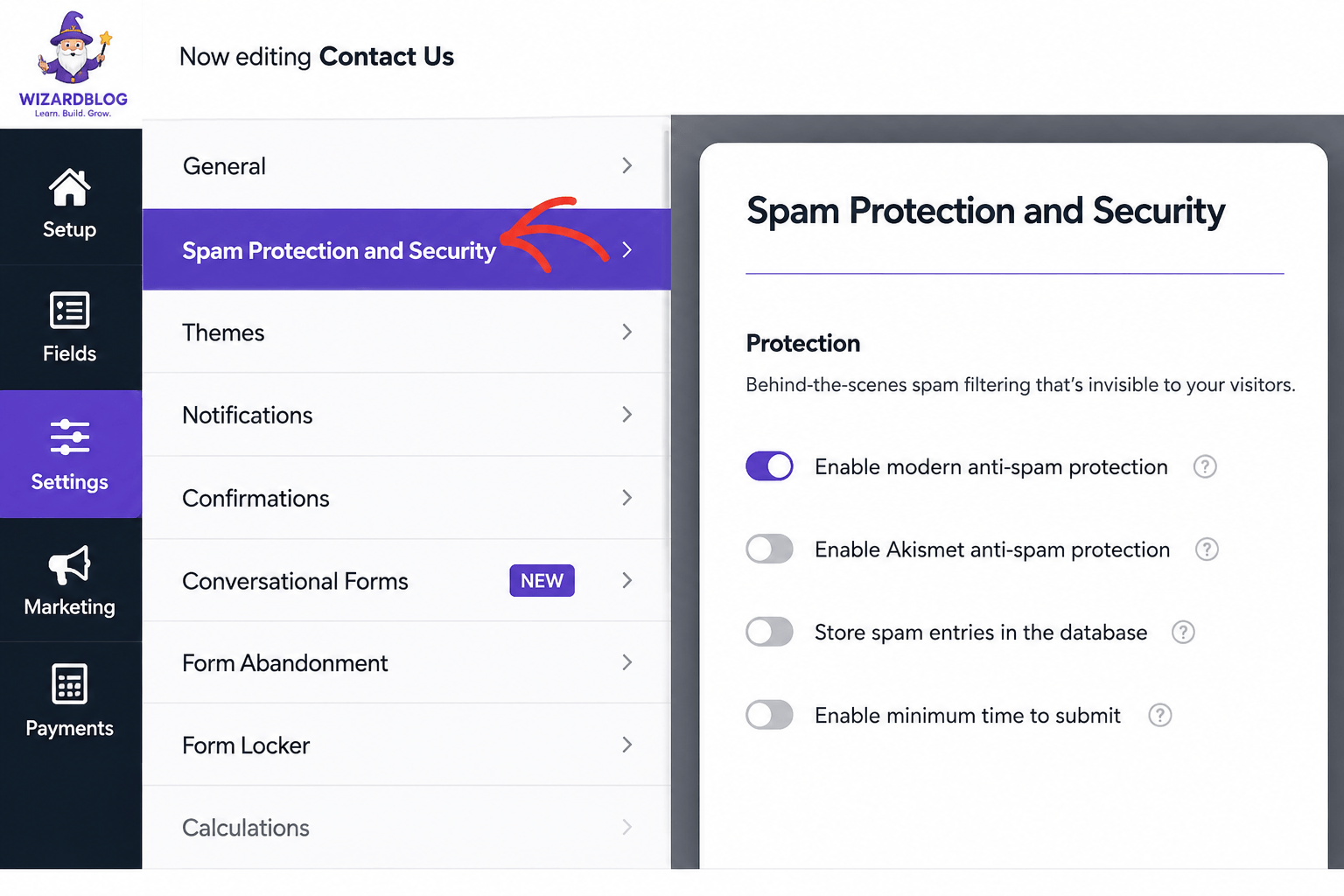
Many WordPress form plugins include an invisible anti-spam feature based on Honeypot technology, although some plugins may refer to it as Modern Anti-Spam Protection, Spam Protection Token, or simply Honeypot. Regardless of the name, the purpose is the same—to strengthen WordPress spam protection by detecting and blocking automated bots without affecting real users.
Unlike traditional CAPTCHA systems, Honeypot protection works silently in the background. It adds hidden fields and validation checks that are invisible to human visitors but easily detected by spam bots. If a bot attempts to complete these hidden fields, the form submission is automatically rejected before it reaches your website.
If you’re using a different WordPress form builder, look for settings related to Honeypot, Modern Anti-Spam Protection, or Invisible Spam Protection and make sure the feature is enabled. Activating this built-in functionality provides an additional layer of WordPress spam protection while keeping the form submission process fast and user-friendly for legitimate visitors.
Enable CAPTCHA on Your Contact Form
For even stronger WordPress spam protection, consider adding a CAPTCHA to your contact form. While invisible anti-spam features such as honeypots and security tokens can block most automated bots, some advanced spambots are designed to imitate real user behavior. A CAPTCHA adds an extra verification step that helps prevent these sophisticated bots from submitting fake entries.
Many popular WordPress form plugins, including WPForms, support multiple CAPTCHA services such as Cloudflare Turnstile and Google reCAPTCHA. Among these, Cloudflare Turnstile is a popular choice because it provides excellent security while offering a smoother experience for genuine visitors. Most users are verified automatically without solving image puzzles or completing complicated challenges.
How to Enable Cloudflare Turnstile in WPForms
- Open your WordPress Dashboard.
- Go to WPForms → Settings → CAPTCHA.
- Select Cloudflare Turnstile as your CAPTCHA provider.
- Enter your Site Key and Secret Key obtained from your Cloudflare account.
- Save your settings and enable Turnstile for the contact forms you want to protect.
Adding Cloudflare Turnstile alongside your existing anti-spam settings creates a more complete WordPress spam protection strategy. It helps block sophisticated spambots while allowing legitimate visitors to submit your contact forms quickly and without unnecessary interruptions.
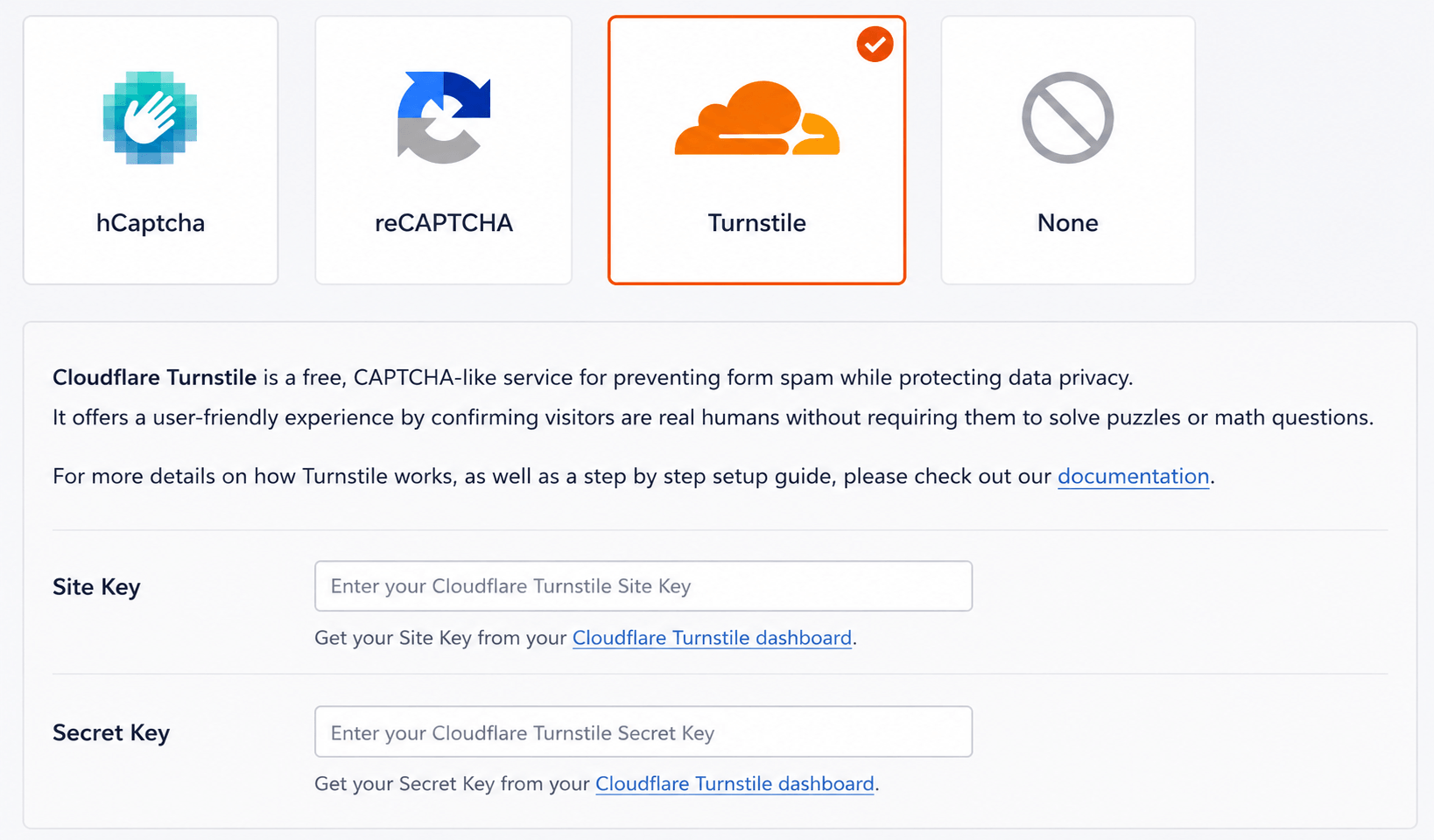
After selecting Cloudflare Turnstile, copy the Site Key and Secret Key from your Cloudflare dashboard and paste them into the appropriate fields in your WordPress form plugin. Once you’ve entered both keys, click Save Settings to activate the integration.
The final step in your WordPress spam protations setup is to enable the CAPTCHA on every form you want to secure. Simply edit each contact, registration, or feedback form, add the Turnstile CAPTCHA option, and save the form. This extra verification layer helps block automated spam submissions while keeping the experience smooth for genuine visitors.
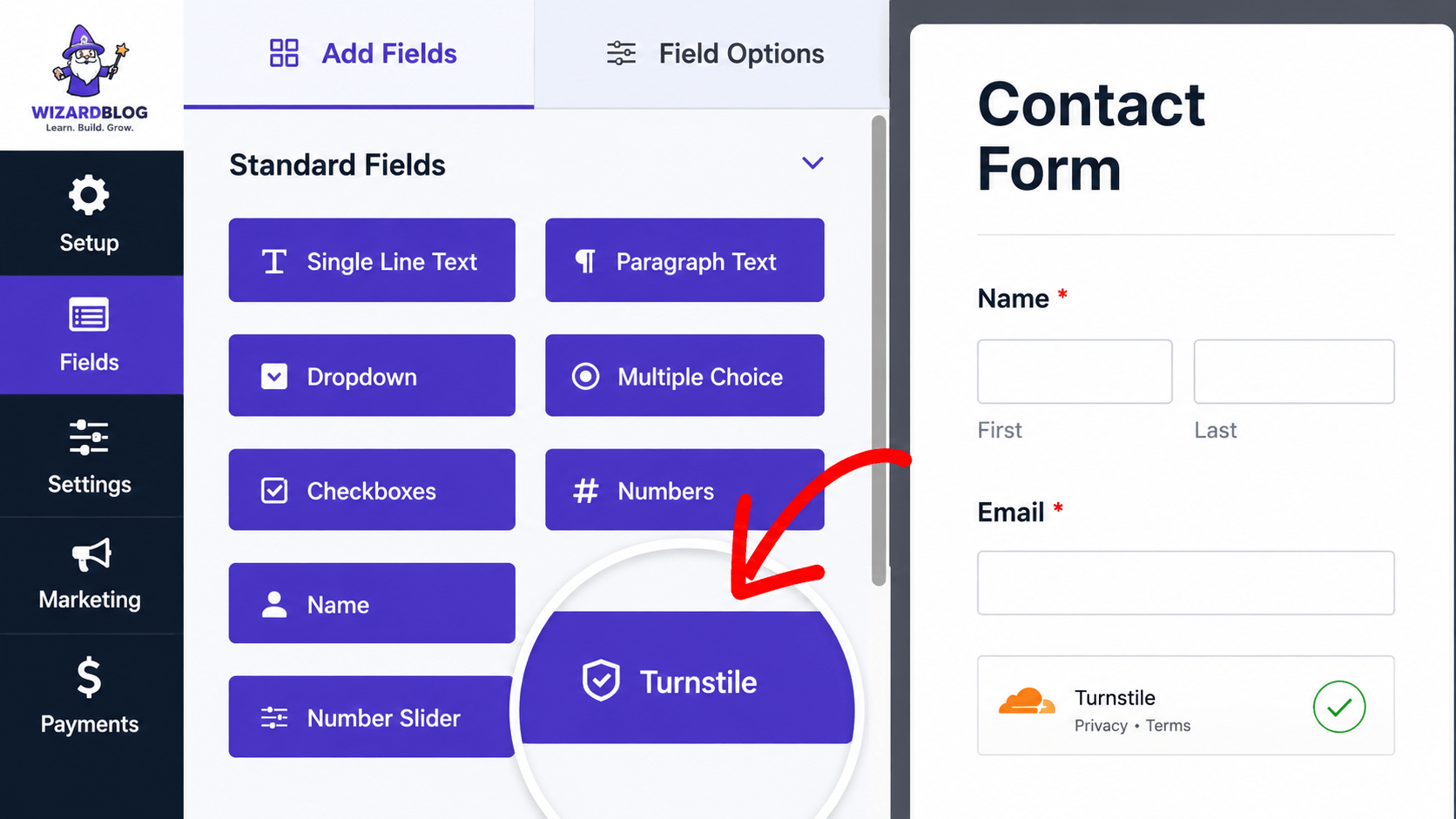
Alternative CAPTCHA Options for Better WordPress Spam Protations
If you need detailed setup instructions, you can follow a step-by-step tutorial to integrate Cloudflare Turnstile with your WordPress website. It is one of the most reliable solutions for improving WordPress spam protations while keeping the user experience smooth and hassle-free.
If Cloudflare Turnstile isn’t your preferred option, Google reCAPTCHA is also available in the WPForms → Settings → CAPTCHA section. Both services help reduce spam effectively, but many website owners choose Turnstile because it offers unlimited free usage and provides a more privacy-friendly experience.
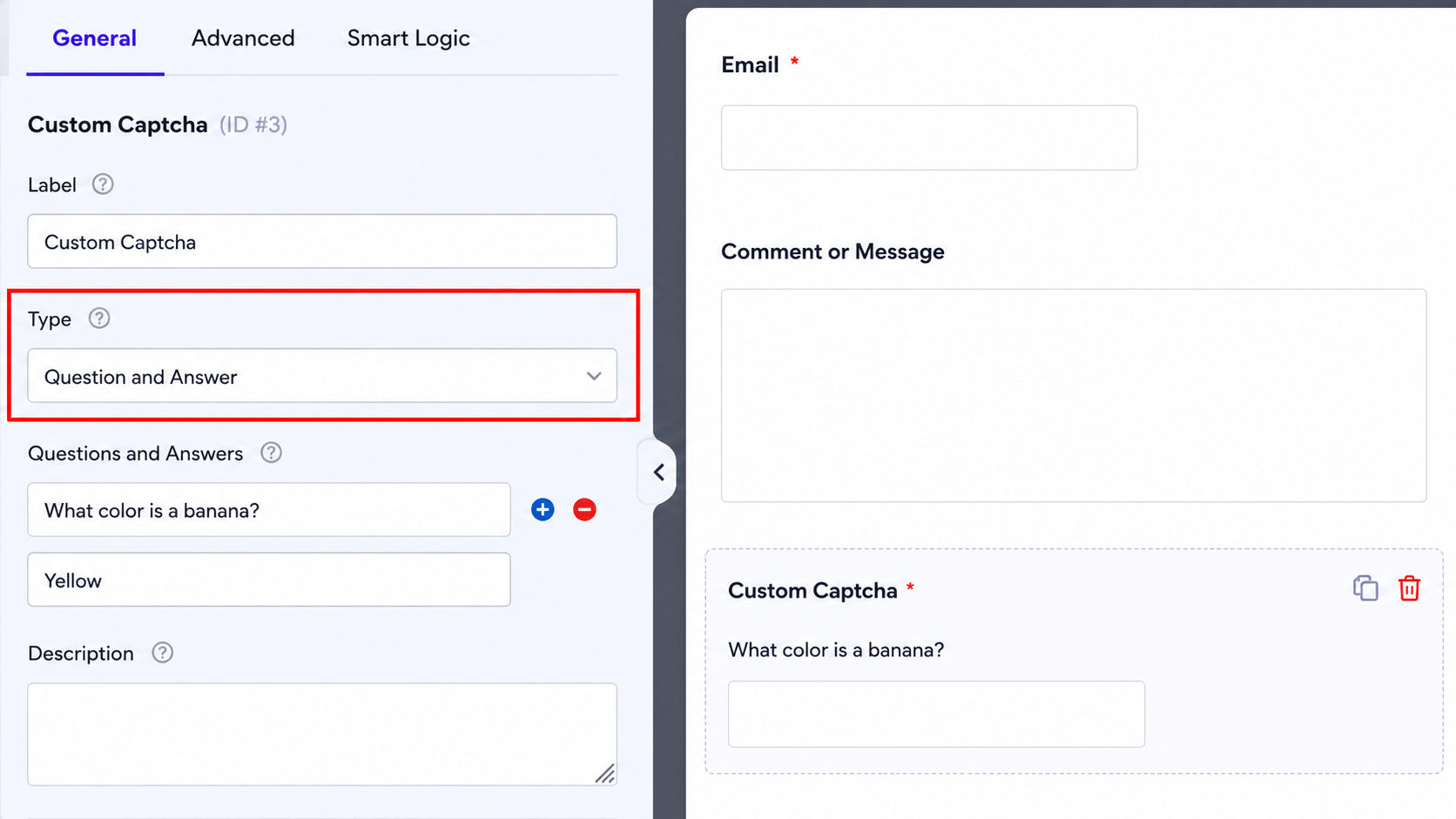
For users who prefer not to rely on third-party verification services, WPForms Pro includes a Custom CAPTCHA feature. This option creates the verification challenge directly on your own website instead of sending requests to external providers.
Simply add the Custom CAPTCHA field to your form and configure it with either:
- A randomly generated math question.
- A custom question and answer that only genuine visitors can solve.
Using a custom challenge is another effective layer of WordPress spam protations, helping block automated bots while allowing legitimate users to submit your forms without unnecessary complexity.
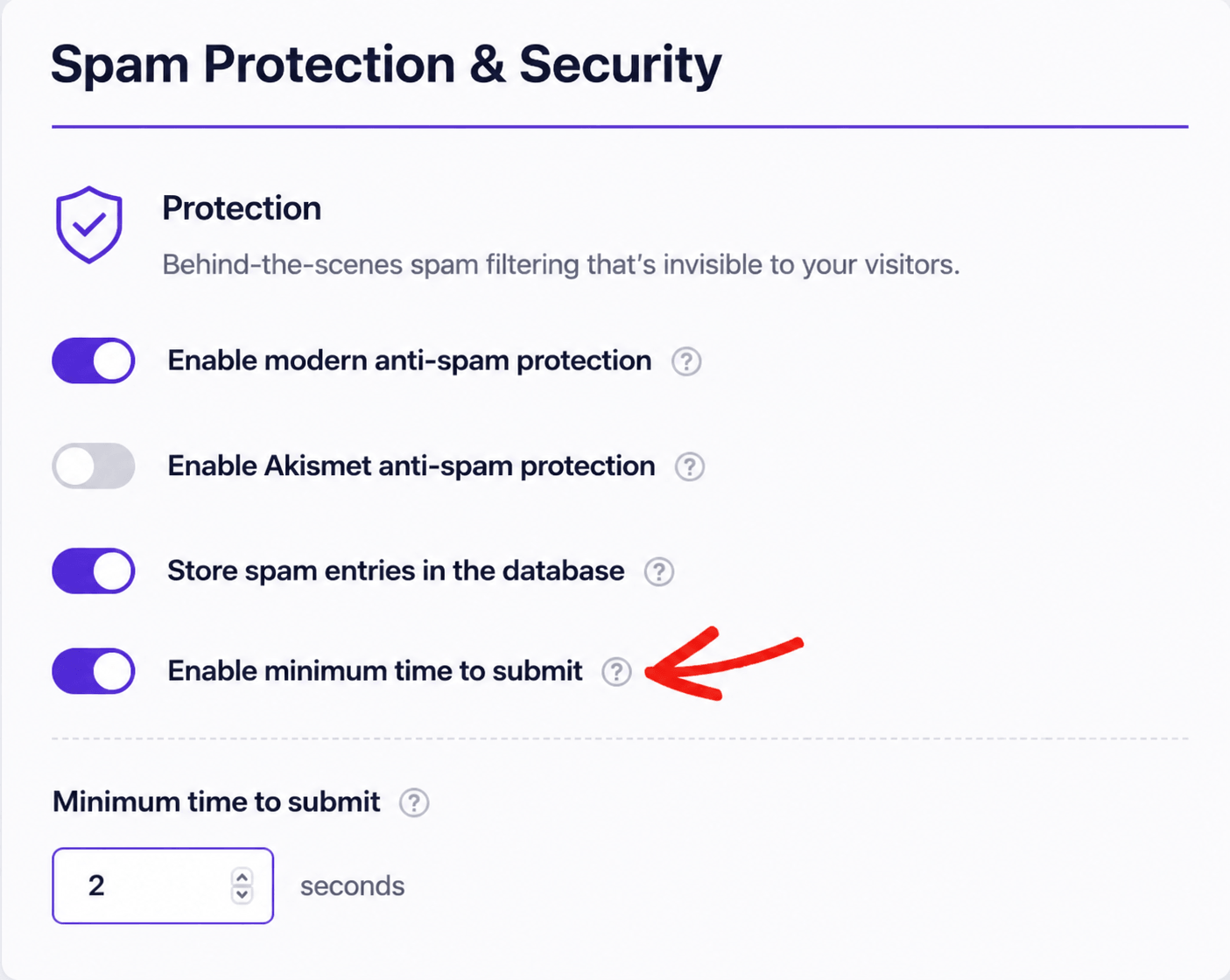
Another effective way to improve WordPress spam protations is by enabling time-based submission checks on your contact forms. Genuine visitors naturally take a few seconds to read the form and enter their details, while automated bots often submit forms instantly. By detecting unusually fast submissions, WordPress can identify and block suspicious activity without affecting the user experience.
If you’re using WPForms, this feature is already enabled by default. The plugin requires users to spend at least 2 seconds on the form before it can be submitted. If needed, you can increase or decrease this minimum submission time to match your website’s requirements. A slightly higher limit can provide even better WordPress spam protations, especially for forms frequently targeted by spambots.
Block Form Submissions by Email, IP Address, Country, and Keywords
Adding advanced filtering rules is another smart way to improve WordPress spam protations. While basic anti-spam tools stop most bots, some unwanted submissions can still make it through. Advanced filters allow you to block suspicious users before their forms are submitted. If you’re using WPForms Pro, you can create custom restrictions based on email addresses, email domains, IP addresses, countries, or even specific words and phrases. This gives you greater control over who can submit your forms.
For example, to block unwanted email addresses, open your form in the WPForms builder and select the Email field. Next, switch to the Advanced settings, enable the Denylist option, and enter the email addresses or domains you want to block. You can also use wildcard entries such as *@example.com to prevent submissions from an entire domain.
Using these advanced filtering options alongside other WordPress spam protations techniques helps keep your contact forms clean, reduces unwanted submissions, and saves valuable time managing spam.
Filter Spam Using Keywords, Country, or IP Restrictions
For stronger WordPress spam protations, you can filter form submissions based on keywords, countries, or IP addresses. These advanced rules help stop unwanted messages before they reach your inbox.
If you’re using WPForms Pro, open your form and navigate to Settings » Spam Protection and Security. Enable the Keyword Filter option, click Edit Keyword List, and enter the words or phrases you want to block. Add each keyword on a separate line so WPForms can automatically reject matching submissions.
You can also enable the Country Filter from the same settings page. This feature allows you to either accept submissions only from selected countries or block traffic from regions where spam is common. It’s especially useful if your business serves customers in specific locations.
If your current form plugin doesn’t include country or keyword filtering, you can still strengthen your WordPress spam protations by blocking suspicious IP addresses directly in WordPress or through your hosting provider and firewall. Combining these filtering methods can significantly reduce spam and keep your forms secure.
5. Prevent Spam User Registrations in WordPress
Fake user registrations can quickly become a problem for membership websites, online stores, and community platforms. They fill your database with inactive accounts, waste server resources, and make it difficult to manage real users. Implementing the right WordPress spam protations helps keep your website secure and your user database clean.
Disable User Registration If It’s Not Required
If your website doesn’t need visitors to create accounts, the simplest WordPress spam protations strategy is to disable user registration completely. Blogs, business websites, and portfolio sites usually have no reason to accept public registrations, so turning this feature off eliminates fake signups altogether.
To disable registrations, go to Settings » General in your WordPress dashboard. Under the Membership section, uncheck the “Anyone can register” option and save your changes.
By disabling unnecessary registrations, you remove one of the most common entry points used by spambots and significantly improve your WordPress spam protations with just a single setting.
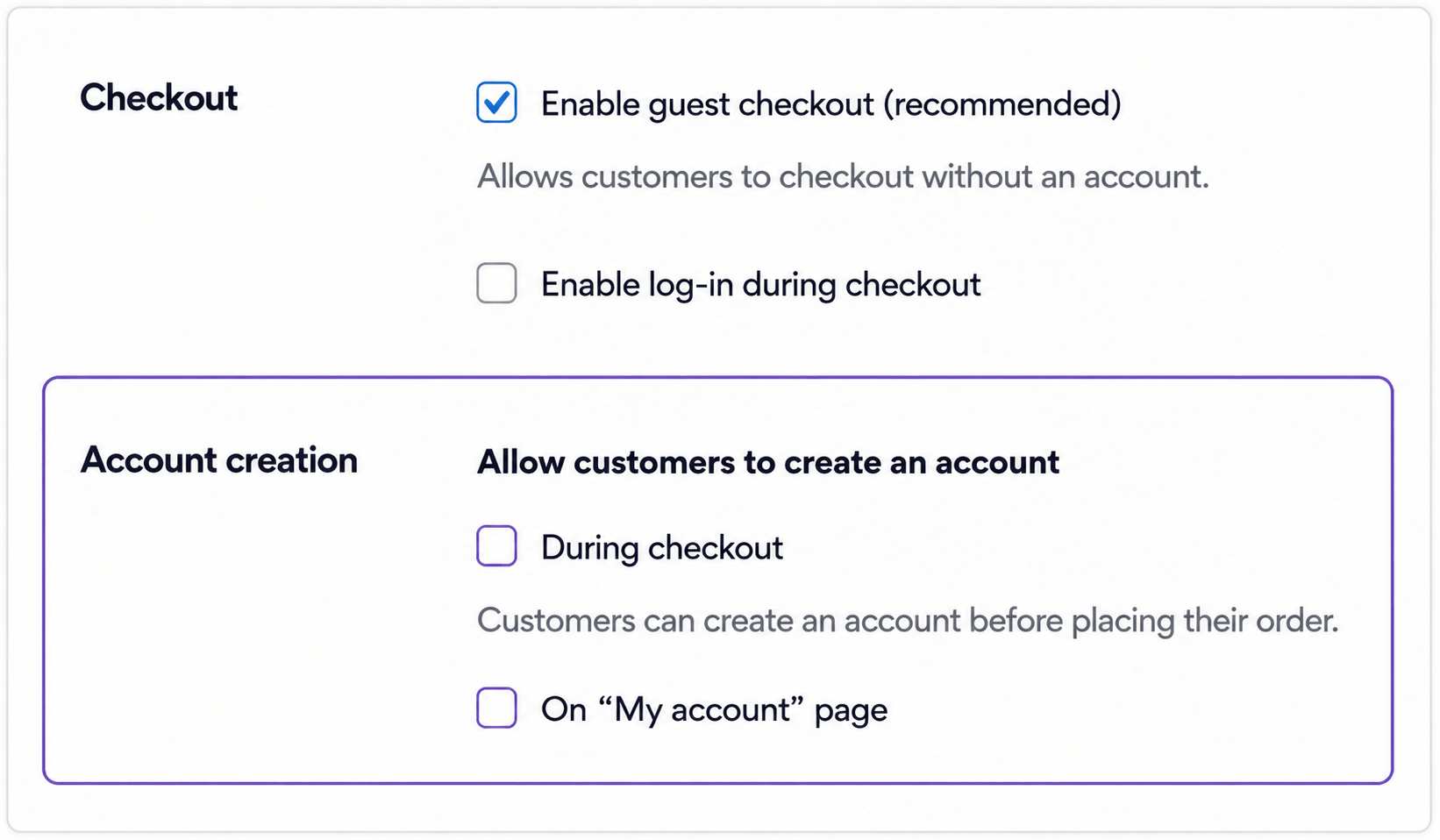
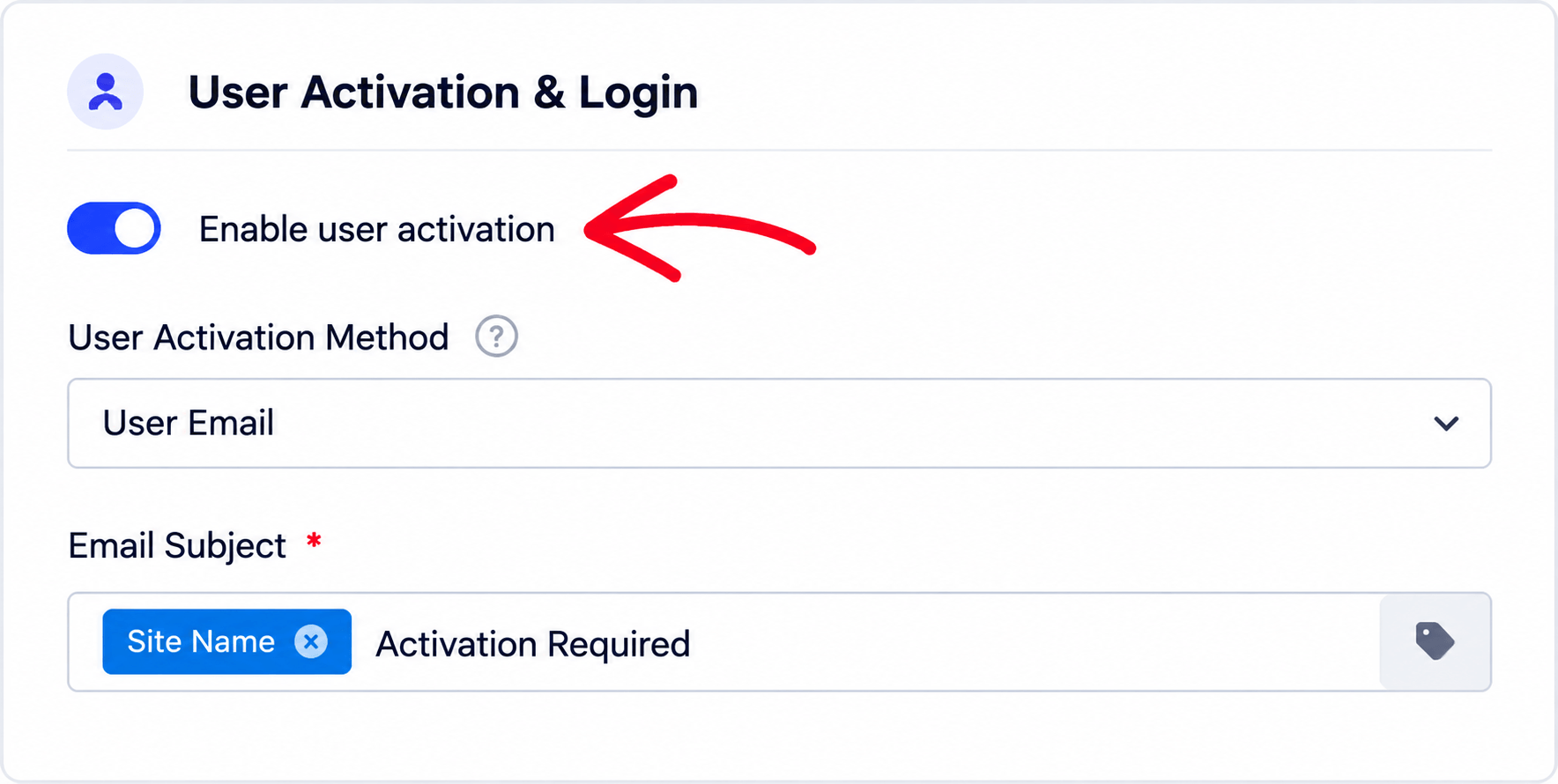
One of the most effective WordPress spam protations techniques is verifying a user’s email address before activating their account. This extra verification step prevents bots from creating fake accounts and helps keep your website’s user database clean.
The exact setup depends on the membership or eCommerce plugin you are using, as each platform manages user registrations differently.
WooCommerce
By default, WooCommerce does not include built-in email verification for new user registrations. If you want customers to confirm their email before their account becomes active, you’ll need to install an email verification extension or use a custom registration form that supports email activation.
MemberPress
MemberPress creates user accounts immediately after registration. To improve WordPress spam protations, you can pair it with a user verification plugin that keeps new accounts inactive until users verify their email address.
BuddyPress and BuddyBoss
BuddyPress and BuddyBoss already include email activation as part of their registration system. After signing up, new members must click the activation link sent to their email before accessing the community, making it an excellent built-in defense against spam registrations.
LearnDash
LearnDash relies on the default WordPress registration system, which activates accounts instantly. If you want to require email verification, you’ll need to integrate a verification plugin or create a custom registration form that supports account activation.
Create a Custom Registration Form
If you’re building your own registration form with a form builder such as WPForms, you can enable email verification or manual administrator approval before allowing new users to access your website. This adds an additional security layer and is highly recommended for membership websites, online communities, and educational platforms.
By requiring email confirmation before activation, you can significantly reduce fake registrations and strengthen your overall WordPress spam protations strategy.
Add CAPTCHA and Honeypot Protection to Your WordPress Registration Form
Protecting your registration page is an important part of WordPress spam protations. Along with contact forms, signup forms are frequently targeted by spambots that create fake user accounts. Adding CAPTCHA and Honeypot protection can dramatically reduce these unwanted registrations.
Many popular WordPress form plugins, including Gravity Forms, WS Form, and similar solutions, include built-in spam protection features. If you’ve already configured Cloudflare Turnstile on your website, you can enable it on your registration form with just a few clicks to stop automated signup attempts.
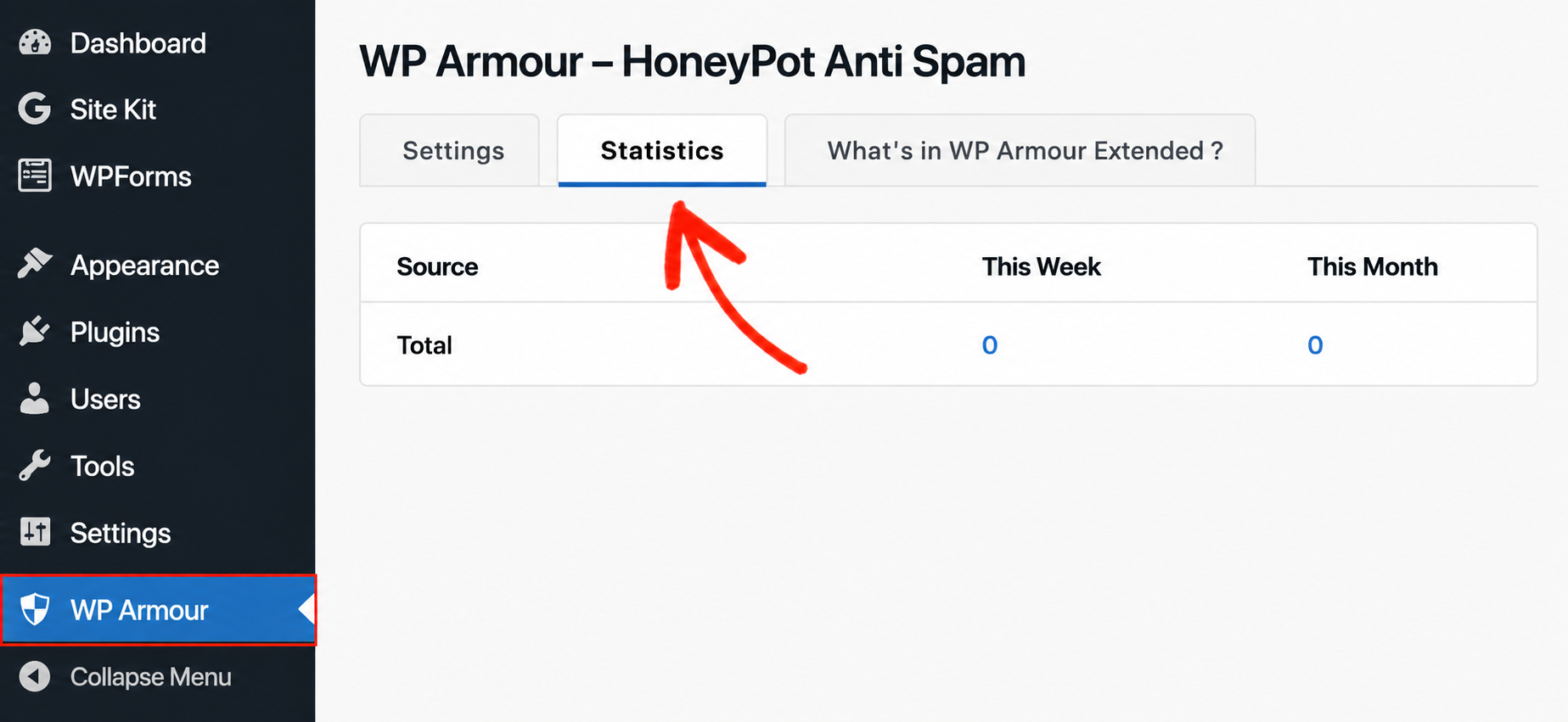
For websites that use the default WordPress registration page, a Honeypot solution is another excellent option. Plugins like WP Armour automatically add hidden fields that remain invisible to real visitors but trap spambots that attempt to fill every field on the page. When a bot triggers the Honeypot, the registration request is blocked before a fake account is created.
WP Armour also provides a statistics section where you can monitor blocked spam attempts and evaluate how effectively your WordPress spam protations are performing.
Using both CAPTCHA and Honeypot technology together creates a stronger defense against fake registrations while ensuring a smooth experience for genuine users.
Even after enabling CAPTCHA and honeypot security, some sophisticated bots can still create fake accounts using temporary email addresses, proxy servers, or suspicious IPs. To improve your WordPress spam protations, consider using an AI-powered spam detection service that analyzes every registration request before a new account is created.
Services like ActiveLayer and CleanTalk automatically examine user registrations based on IP reputation, email quality, device behavior, and other security signals. If a signup appears suspicious, it is blocked before it reaches your WordPress database.
The setup process is simple. After installing your preferred security plugin, enable registration protection from the plugin settings and connect it to your WordPress registration form. This provides an additional layer of defense without affecting genuine users, helping keep your website free from fake accounts and spam registrations.
6. Add a Website Firewall for Better WordPress Spam Protations
One of the most effective ways to improve WordPress spam protations is by using a Web Application Firewall (WAF). Unlike regular spam plugins that filter requests after they reach your website, a firewall blocks malicious traffic before it ever arrives at your server.
A DNS-level firewall offers the strongest protection because it inspects incoming traffic across its own network and filters out bots, spam requests, and common cyber attacks before they can consume your server resources.
Many WordPress website owners choose Cloudflare because it provides reliable firewall protection, DDoS mitigation, bot filtering, and CDN performance improvements. Even its free plan includes basic security features that significantly reduce unwanted traffic. To activate it, simply connect your domain to Cloudflare by updating your domain’s nameservers and enable the firewall from your Cloudflare dashboard.
By combining a firewall with comment filters, CAPTCHA protection, and AI-based spam detection, you can build a complete WordPress spam protations strategy that protects comments, contact forms, user registrations, and your entire website from automated spam attacks.

If you need help configuring Cloudflare, check out our complete step-by-step tutorial on setting up the Cloudflare CDN and firewall for WordPress websites. It explains everything from connecting your domain to enabling security features that strengthen your WordPress spam protations and improve website performance.
You can also explore our detailed comparison of the best WordPress firewall plugins to find the right solution for your website. We compare their security features, ease of use, pricing, and spam-blocking capabilities so you can choose the firewall that best fits your site’s needs while improving your overall WordPress spam protations strategy.
7. Clean Up Spam and Monitor Your Website Regularly
Blocking new spam is only one part of an effective WordPress spam protations strategy. Over time, your website may collect thousands of spam comments, fake registrations, and unwanted form submissions that remain stored in the database. Regular cleanup helps improve website performance, keeps your database organized, and allows your spam protection tools to work more efficiently.
Making spam cleanup part of your routine maintenance ensures your WordPress site stays fast, secure, and easier to manage.
Important: Before deleting spam records in bulk, always create a complete backup of your WordPress website. This gives you a safe restore point in case anything is removed accidentally.
By combining regular maintenance with strong WordPress spam protations, you can keep your website clean, reduce database bloat, and prevent spam from affecting your site’s performance or user experience.
Remove Existing Fake User Accounts
An effective WordPress spam protations strategy isn’t just about blocking spam—it also involves removing fake user accounts that are already stored in your website. Bot-created accounts can increase security risks, fill your database with unnecessary records, and produce inaccurate user and traffic reports.
If you only have a few suspicious accounts, you can remove them manually:
- Sign in to your WordPress Dashboard.
- Go to Users → All Users.
- Filter users by the Subscriber role, since most spam registrations use this default role.
- Select the fake accounts you want to remove.
- Choose Delete from the Bulk Actions dropdown and apply the changes.
Important: Before deleting any account, carefully verify that it belongs to a spam user. Only remove fake Subscriber accounts, and never delete Administrator or other legitimate user accounts.
Delete Large Numbers of Spam Users
If your website has accumulated hundreds or even thousands of fake registrations, deleting them one by one can be time-consuming. In this situation, a plugin like WP Bulk Delete can help you remove users in bulk based on criteria such as user role, registration date, or inactive accounts.
Regularly cleaning fake registrations is an essential part of maintaining strong WordPress spam protations. It keeps your user database organized, improves website performance, enhances security, and ensures your analytics reflect real visitors instead of spam bots.
For a more detailed walkthrough, you can also refer to our complete guide on how to bulk delete WordPress users by role.
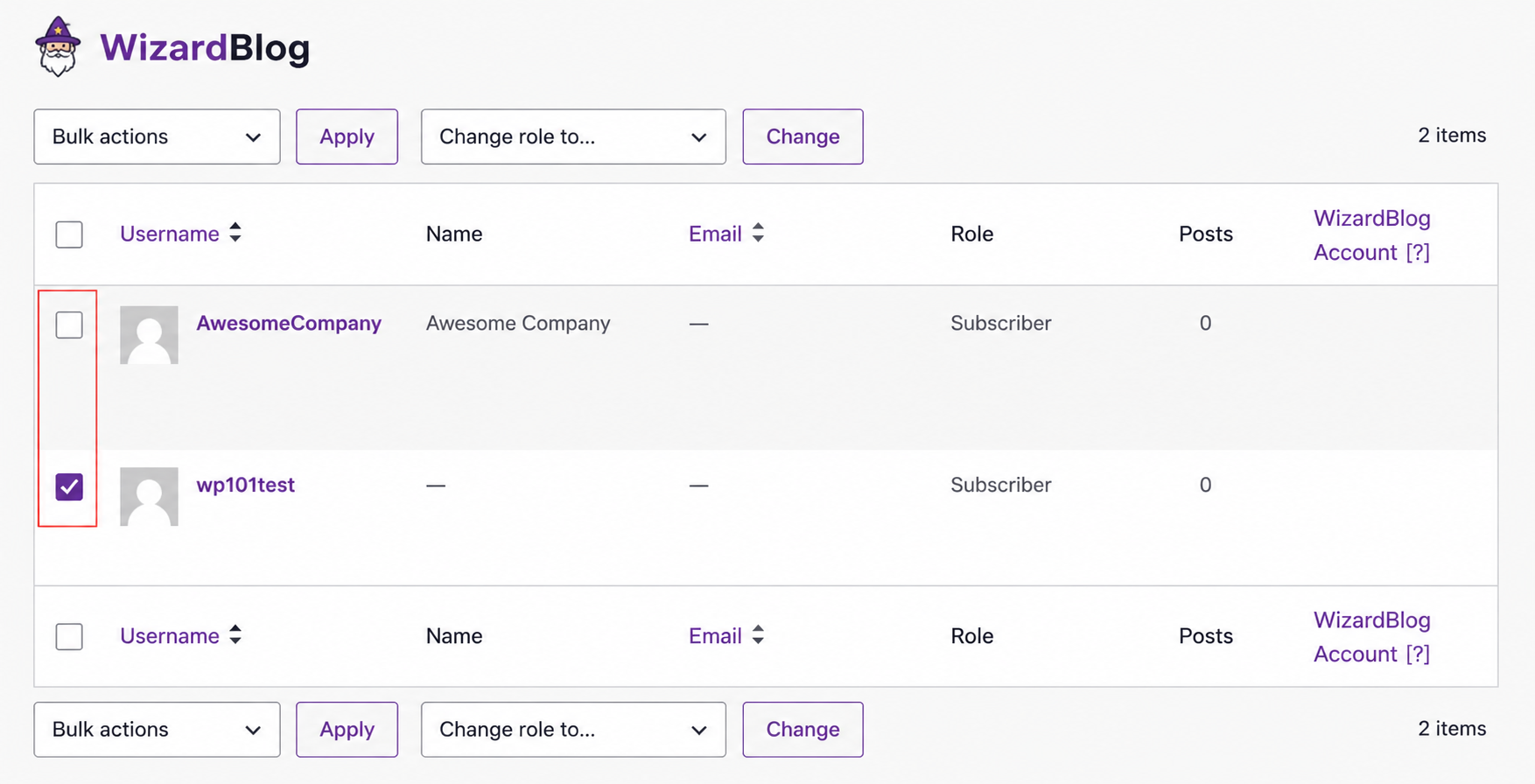
If your website has collected hundreds or even thousands of fake user registrations, deleting them one at a time is simply not practical. A bulk user management plugin lets you remove unwanted accounts based on specific conditions such as user role, registration date, or inactive status. This helps you clean up your database quickly while keeping your site organized and secure.
Before performing any bulk deletion, always create a full backup of your WordPress site. This ensures you can restore important data if anything is removed by mistake. Taking a few minutes to back up your website can save hours of recovery work later.
Review Suspected Spam Before Deleting
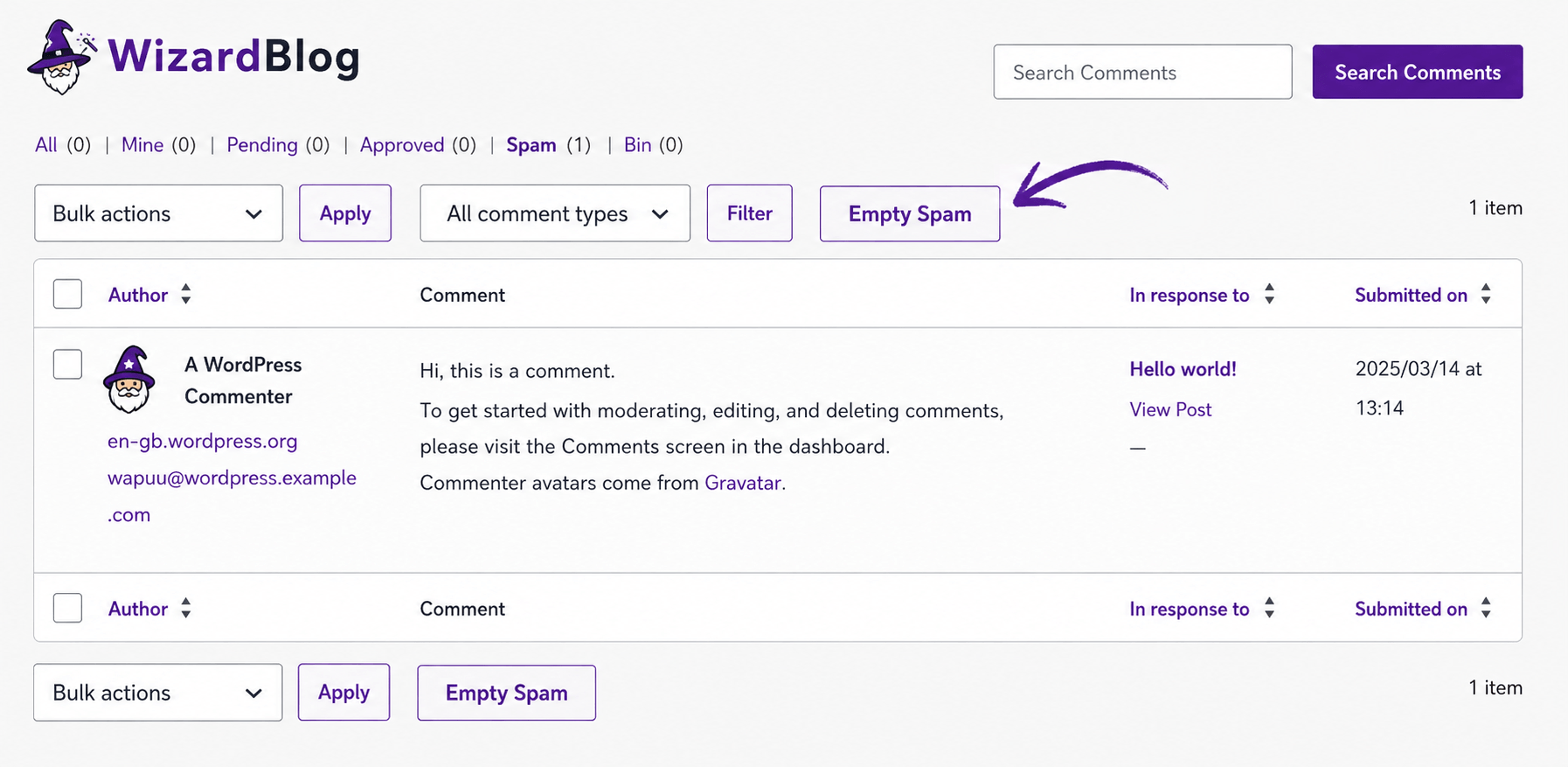
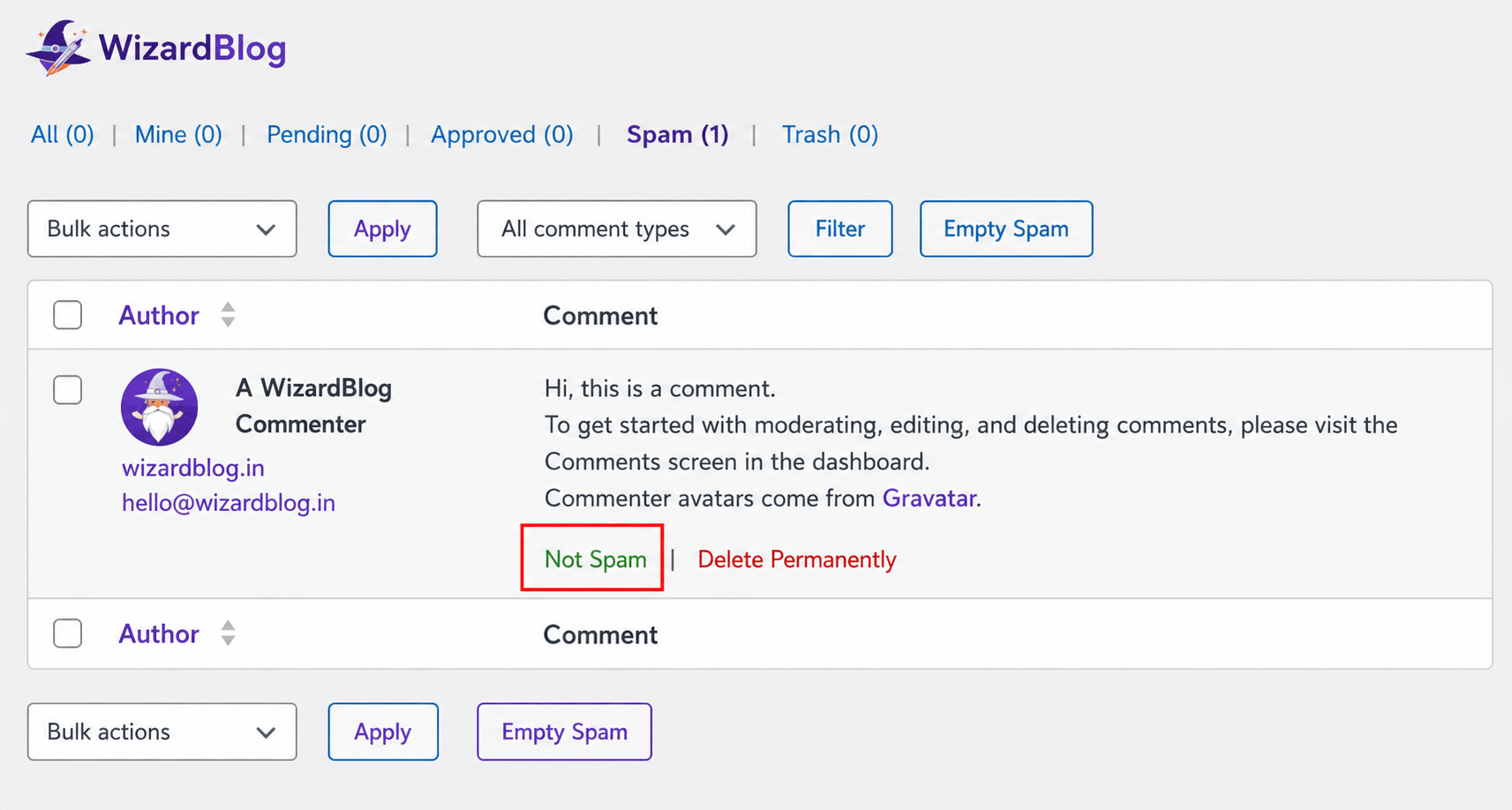
Even the best WordPress spam protection tools can occasionally flag a genuine visitor as spam. That’s why it’s important to review your spam queue before permanently deleting comments or user accounts.
Open your spam comments section and quickly scan through the entries. If you find a legitimate comment, mark it as Not Spam instead of deleting it. This improves the accuracy of your spam filtering system over time, helping it better distinguish between real visitors and spambots.
Making manual reviews part of your WordPress spam protection routine reduces the risk of losing valuable user interactions while keeping your website free from unwanted spam.
Schedule a Monthly WordPress Spam Protection Check
Stopping spam isn’t a one-time task. To keep your website secure and running smoothly, it’s a good idea to spend a few minutes each month reviewing your WordPress spam protection settings and cleaning up anything suspicious.
Here are three simple tasks to include in your monthly website maintenance routine:
- Review Spam for Legitimate Messages : Even the best spam filters can occasionally flag genuine comments or contact form submissions. Take a quick look through your spam folders to make sure you haven’t missed a real visitor’s message. If you find a legitimate comment, restore it before deleting the rest.
- Remove Old Spam Entries : After confirming there are no valid comments or form submissions, permanently delete the remaining spam. Regular cleanup keeps your WordPress database smaller, improves dashboard performance, and prevents unnecessary clutter.
- Inspect New User Registrations : If your website allows user registration, review newly created accounts every month. Watch for random usernames, suspicious email addresses, or accounts that appear to be created by bots. Removing fake users early helps strengthen your WordPress spam protection strategy and keeps your website secure.
Pro Tip: Combine this monthly review with plugin updates, security scans, and backups. A consistent maintenance routine ensures your WordPress spam protection remains effective and reduces the chances of spam becoming a problem again.
Key Takeaways: Best Practices for WordPress Spam Protection
If you want to keep your website free from unwanted comments, fake registrations, and bot attacks, follow these proven WordPress spam protections. Using several layers of defense together provides the strongest protection.
- Configure WordPress’s built-in spam settings first: Enable comment moderation, reduce the number of links allowed in comments, create a comment blocklist for suspicious keywords, and disable trackbacks and pingbacks. These simple settings help stop a large amount of spam without installing additional plugins.
- Use an automatic anti-spam solution: Install a trusted spam protection plugin such as ActiveLayer, Akismet, or CleanTalk. These tools analyze submissions in the background and block spam automatically, giving real visitors a smooth experience without unnecessary CAPTCHA challenges.
- Strengthen your contact forms: Modern spam bots can bypass basic honeypot fields. For better WordPress spam protections, combine honeypot technology with submission time checks, security tokens, and AI-powered spam filtering.
- Protect user registrations: If your site allows account creation, require email verification and scan every new registration with an anti-spam tool. This prevents fake users from filling your database with bot accounts.
- Secure your website with a firewall: A website firewall, such as Cloudflare’s DNS-level protection, can stop malicious traffic before it even reaches your WordPress site. This reduces spam attempts and improves overall website security.
- Perform regular maintenance: Clean out spam comments, remove fake user accounts, and review your spam folders periodically for any legitimate submissions that may have been filtered by mistake. A monthly maintenance routine keeps your WordPress spam protections effective and your website running efficiently.
Final Tip: No single plugin can stop every spam attack. The most effective WordPress spam protections come from combining WordPress’s built-in settings, reliable anti-spam plugins, secure forms, firewall protection, and regular website maintenance. This layered approach will keep your WordPress website cleaner, safer, and easier to manage.
What is WordPress spam?
WordPress spam refers to unwanted content generated by bots or malicious users. It can include spam comments, fake user registrations, contact form submissions, trackback spam, and even malicious links. Without proper WordPress spam protections, spam can damage your website’s reputation, slow down performance, and create security risks.
Why is spam a problem for WordPress websites?
Spam affects more than just your comments section. It can: Fill your database with unnecessary data, Fill your database with unnecessary data. Fill your database with unnecessary data, Reduce website performance.
Waste your time managing fake submissions. Increase security risks through malicious links. Hurt user trust and website credibility. Using multiple WordPress spam protections helps prevent these issues before they become a serious problem.
What is the best way to stop spam in WordPress?
There isn’t a single solution that blocks every spam attempt. The best approach is to combine several WordPress spam protections, including: WordPress comment moderation, Anti-spam plugins, Secure contact forms, Email verification for registrations, Website firewall protection, Regular website maintenance.
Do I need a CAPTCHA on every form?
Not always. While CAPTCHA can reduce spam, it may also affect the user experience. Many modern anti-spam plugins use AI, behavior analysis, and server-side filtering to stop bots without asking visitors to solve challenges. These methods often provide stronger WordPress spam protections with less friction.
Which anti-spam plugins are recommended for WordPress?
Several trusted plugins can help protect your website from spam, including: ActiveLayer, Akismet, CleanTalk
Antispam Bee, WP Armour. Choose the plugin that best matches your website’s needs and update it regularly for maximum effectiveness.
How can I stop fake user registrations?
To reduce fake registrations, enable email verification, use registration approval if necessary, install a trusted anti-spam plugin, and monitor new user accounts regularly. These simple WordPress spam protections help prevent bots from creating unwanted accounts.
Can a firewall help prevent WordPress spam?
Yes. A web application firewall (WAF), especially a DNS-level firewall, blocks many automated bots before they reach your website. This reduces spam comments, fake registrations, and malicious traffic while improving overall website security.
How often should I review spam activity?
A quick monthly review is usually enough for most websites. During your review: Check spam comments for false positives, Delete old spam entries, Remove fake user accounts, Update your anti-spam plugins.
Review firewall and security settings, Regular maintenance keeps your WordPress spam protections working efficiently.
Are free WordPress spam protection tools enough?
Free tools work well for many personal blogs and small business websites. However, if your website receives high traffic or frequent spam attacks, upgrading to a premium anti-spam solution or adding a firewall can provide stronger WordPress spam protections and reduce manual moderation.
What is the most effective WordPress spam protection strategy?
The most reliable solution is to use multiple layers of protection instead of relying on a single plugin. Combine WordPress’s built-in moderation settings, a trusted anti-spam plugin, secure contact forms, user verification, firewall protection, and regular maintenance. This comprehensive approach offers the strongest WordPress spam protections for websites of any size.